
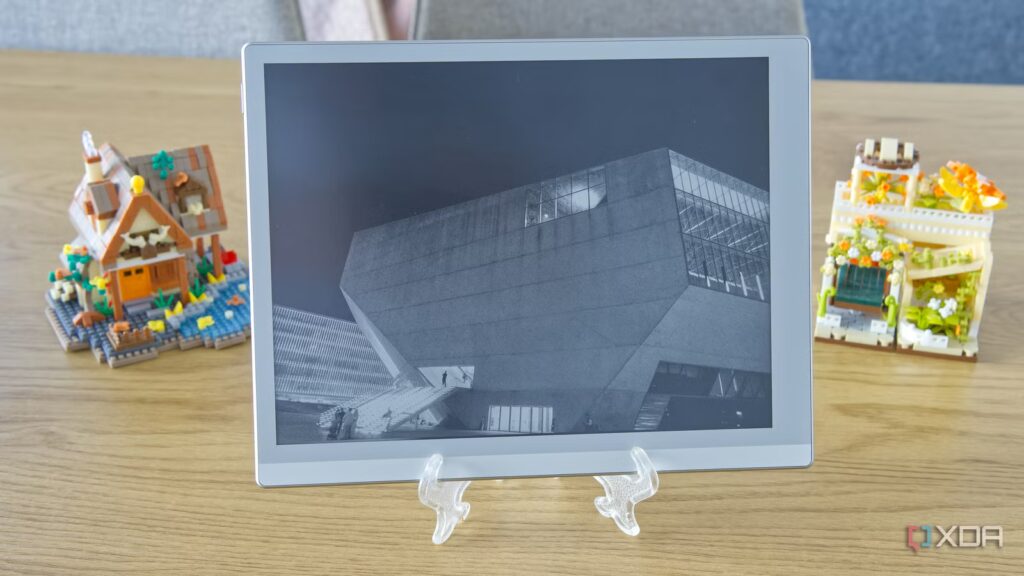
There are many uses for an E Ink or ePaper tablet. Sure, some models are pretty locked down, but when you look at something like the Boox Go 10.3 that I reviewed a few weeks ago, it has all the power of Android, which means you can use it for all kinds of different things that might not be your first thought.
Recently I used mine as a second screen for my laptop and honestly it was pretty awesome, but then I thought of something else: what if it could be an art exhibit or a picture frame? And of course, I had to make this idea a reality. And I loved it.
The Best Display for a Home Server Isn’t a Monitor, It’s an E Ink Display
Reduce your power consumption while monitoring your server
Why use an ePaper tablet?
A more unique photo frame

I guess you think it’s a silly idea to use your ePaper tablet as a photo frame, and I understand. An ePaper screen features vivid colors and (sometimes) high resolution to reproduce images as they were captured. But for me, that’s kind of the problem.
The black and white aesthetic you get with the Boox Go 10.3 is actually very unique, making each image feel like a work of art meant to be displayed. Losing the high-tech look makes using it as a photo frame even more natural. And combined with the minimalist design of the tablet itself, it looks great as a photo frame compared to the shiny reflective glass and black borders of a typical tablet. This looks like a very modern piece of decor.
In addition, ePaper has another advantage: very low power consumption. A normal screen looks great, but it consumes a lot of power even when just displaying the same image. And if it’s an OLED screen, burn-in can become a problem. An ePaper panel only needs to consume power when the image on the screen changes, so it’s much more energy efficient in general, and burn-in isn’t really a risk, so there’s much less reason to worry about it.

5 Reasons Why an E Ink Tablet May Be Better for You Than an iPad
You must use the right tool for the job
Creating the gallery
Immich to the rescue

Now, the question of creating the photo frame is an area where things are very open. Depending on what you want to display, the options are numerous, since Boox tablets can install just about any app from the Google Play Store. For me, however, this was unnecessary as I wanted to use my self-hosted Immich server.
A colleague of mine actually wrote about another self-hosted app not too long ago called Immich Kiosk, and it made perfect sense to me here. In simple terms, this service connects to my Immich instance and simply displays photos from it on a web page. All I had to do was create an Immich API key, associate Immich Kiosk with it, and voilà, a random slideshow of my Immich gallery was in a web browser.
Typically this can be a problem as I don’t want the browser UI to clutter the screen, but luckily the Boox Go’s built-in web browser provides a very easy way to go full screen and close the browser UI. So I very quickly had a photo gallery that only shows the photos on my server and nothing else. Changing slideshow timers and other settings requires setting up the Immich Kiosk app on my server, but that’s something I’m fine with.
Honestly, the end result is really good. I love the way my photos look here, and putting this on a stand to display the photos is perfect as decoration.
There are other options
Google Photos, Flickr and more

Of course, if you don’t have a self-hosted Immich server, you may want to consider other options and, fortunately, they exist. There is an app called Fotoo that lets you connect to a variety of cloud services, including OneDrive and Google Drive, so you can relatively easily create slideshows from your photos stored there. Others also exist if you just want to use local images.
I also found an app simply called Art Slideshow, which offers various works of art to display as a slideshow so you can have something a little fancier to decorate your living space. I had hoped to find an app dedicated to black and white art, but if you have a little patience, you can collect some of this work yourself and then compile it into an album that you can use as a slideshow.
How to view photos in a slideshow on Windows 11
Windows 11 makes it easy to view a slideshow of your favorite photos. Here’s how to do it.
You still need the usual considerations
The battery won’t last forever
No matter how long an ePaper tablet’s battery life is, your picture frame will eventually run out of battery, especially if it pulls images over Wi-Fi. You’ll still want to plug it in every once in a while, or better yet, keep it charging at all times. A charge limit feature is also available on the Boox Go, allowing you to prevent the charge from exceeding 80% to preserve long-term battery health while keeping the device plugged in.
However, you’ll still notice that the power consumption is significantly lower than a typical tablet, making it a very energy-efficient photo frame that also has a unique aesthetic. If you have an old Boox tablet or other ePaper display that can run Android or access the web, this is a great way to revitalize it.


8/10
- Resolution
-
2480×1860
- Storage
-
64 GB
- Brand
-
Boox
- Screen size
-
10.3 inches
The Boox Go 10.3 Gen II offers a high-resolution ePaper display that can be used for reading e-books, taking notes, and even as an artistic slideshow.
