
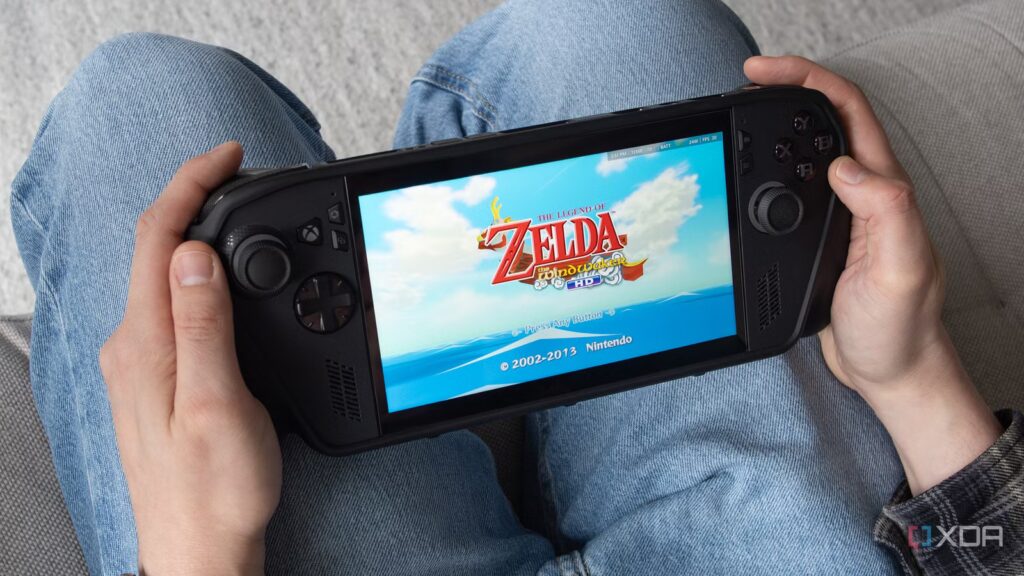
I have been on a The Legend of Zelda retro gaming’s kick lately, whether it’s revisiting Classic Nintendo 64 Ocarina of time via the excellent unofficial Ship of Harkinian-powered PC port on my ROG Xbox Ally X, or by spending time playing the Game Boy Advance The Minish cap on the 34XXSP type GBA SP from Anbernic.
This reminded me that when the Steam Deck was first released, I spent a lot of time getting EmuDeck running on Valve’s handheld (Linux and SteamOS were very new to me at the time), and then, a few years later, I ported everything over to the Steam Deck OLED. Now that I’ve upgraded to the Xbox Ally
While there are a few all-in-one emulation packages out there, I ultimately decided that EmuDeck was the simplest option, even for Windows 11 handhelds like the Xbox Ally
What is EmuDeck anyway?
It’s designed for the Steam Deck, but it still works great with Windows 11 handhelds
At its core, EmuDeck is an installer script that makes it simple to set up multiple emulators on a device (with help from RetroArch for some platforms), whether you’re looking to play games for newer consoles like the Wii U with Cemu, Dreamcast tiles with Flycast, GBA games with mGBA, or even PSP games with PPSSPP, plus a streamlined front-end that makes it easy to access all your ROMs (that you have, Of courseextracted from cartridges and discs you already own).
My favorite thing about EmuDeck is that it pre-configures the game controls, aspect ratio settings, and other settings for each emulator, so you can spend more time playing and less time fiddling with settings. That said, the app still offers simple, easy-to-access quick settings like enabling autosave and frames, changing aspect ratio for different platform eras, adjusting resolution, and more. If you want to change something specific in an emulator, you can always launch it outside of EmuDeck and adjust the settings, but I haven’t needed to do this very often in my experience. For the most part, EmuDeck’s default settings are superb.

EmuDeck also lets you keep all your installed emulators up to date to the latest version, easily import games and console/handheld bios files, and more, all without having to delve into the Windows 11 file system (except during the initial setup process). You can even get cloud saves if you sign up for EmuDeck’s Patreon ($4/month), which lets you sync saved files across platforms (I haven’t done this yet, but plan to).
It also installs EmulationStation, a front-end launcher for your emulators and game collection that makes organizing and adding to your ROM library much easier. It’s basically a console-style dashboard where all your games are organized, complete with artwork and metadata.
I thought retro emulation was a new thing, but it’s become my favorite way to play
You don’t need a stack of old consoles to enjoy authentic old-school gaming.
The process of setting up EmuDeck with the ROG Xbox Ally X is simple
I was sailing the seas in Wind Waker HD in about an hour

First of all, you need to download the latest version of EmuDeck from the official website of the application. Then run the Emudeck.cmd which you have just downloaded and enjoy it as a Matrix-like script installs all the dependencies required for running EmuDeck, EmulationStation and various emulators. We must then choose between Easy mode And Custom mode for the installation process. Both ways work well, but if you’re like me and prefer to change settings later, easy mode gets the job done.
Then you select the device you are using. In my case, I chose the Asus ROG Ally since it’s basically the same handheld as the ROG Xbox Ally X. I then selected Weak for the level of integration since I’m not interested in managing my ROMs with Steam Rom Manager. You will now have the option to choose between several different themes. I always use Next art book because it’s the simplest option, but there are several other cool themes. Now you can select the emulators you want to install on your handheld.
Since I already have a library of ROMs that I pulled from my OLED Steam Deck, I’ve selected the systems I plan to emulate, including the Game Boy Advance, Wii U, Dreamcast, PlayStation, Nintendo 64, and more. Then I turned on Autosave and I left RetroAchievements disabled. I’m a fan of game frames because I always thought they made games look better when played in their original aspect ratio, so I enabled them (they can cause issues with some emulators’ default settings, however). EmuDeck will now install and configure all your selected emulators (this will probably take a few minutes).
The next step is to copy all your ROM files to the corresponding platform folders. For this part of the setup process, I connected a Bluetooth mouse and keyboard for more precise control. Head to File Explorer > This PC > C Drive > Emulation > ROM. Now you need to copy all your ROMs to the corresponding platform folders (the same process applies to BIOS files). I already have my ROM library organized by console and handheld, so it only takes me a few minutes.
Now is the time to settle down Emulation stationthe stylish launcher for all your ROMs. I searched for the app in Windows 11 and opened it (you can also find it in Steam). Once you open EmulationStation, you will see your theme and all the ROMs you have placed in each folder. If you want to make your library much prettier, press the button Start button and select Scraper. If you’re based in the United States, scroll down to Other settingsthen scroll through the region options until you reach USA. Changing this setting ensures that the cover art displayed for each ROM matches the US version. Next, select the games and systems you want to remove. Now start the scraper. Once that’s done, you should have artwork for all of your titles.
A key setting you need to change on the ROG Xbox Ally Control mode has Gamepad. If you leave it on AutoI’ve noticed that some emulators don’t seem to recognize the A button (I encountered this problem with Dreamcast and GBA).
Don’t make the same mistakes as me
Things can get complicated when you get into emulating newer consoles

With my library, I copied everything to a USB drive from my Steam Deck OLED, including the ROM folder hierarchy, saves and bios files, all directly from EmuDeck on the Valve handheld. For the most part everything worked fine, but my saves didn’t transfer due to file compatibility issues, and all my Wii U games, like The Legend of Zelda: Wind Waker HD And Twilight Princess HDstopped working for reasons I still don’t fully understand. I finally managed to resolve the issue, but it took about an hour of troubleshooting.
With all of this in mind, my suggestion is to do a clean install if you’re moving your EmuDeck setup from the Steam Deck to a Windows 11-based handheld. Organize your ROMs into their own independent folders elsewhere and transfer them manually, as I suggested above, if you’re copying your library from another platform.
Now that I have EmuDeck and Emulation Station set up on the ROG Xbox Ally I finally have a high-performance handheld for all my retro gaming needs.

I don’t need the Zelda: Ocarina of Time remake on Switch 2 – I already made my own
Ship of Harkinian powers a native PC port of the N64 classic.
