
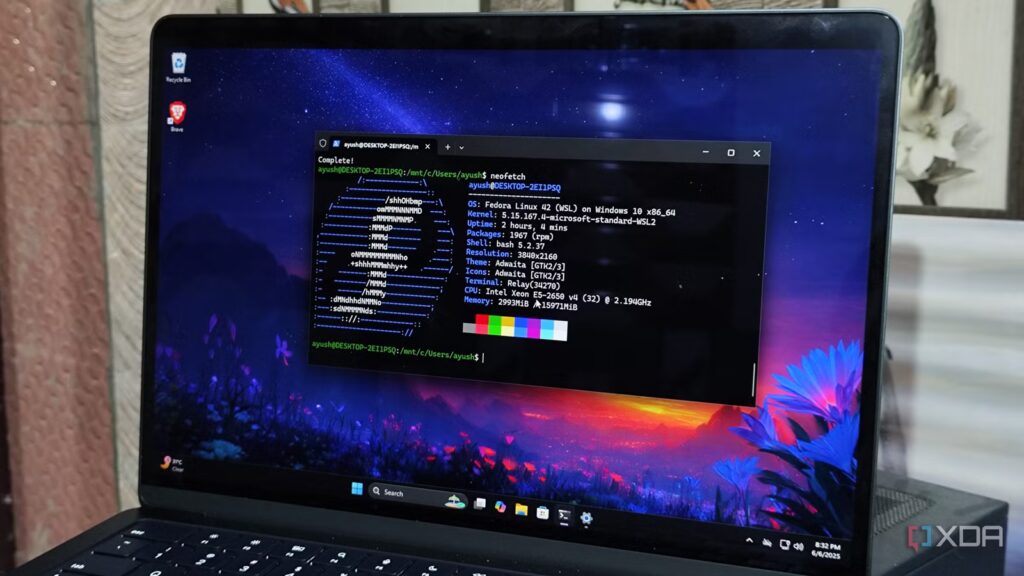
Being able to tinker with Linux distributions and applications is yet another reason why I love my home server. However, you don’t really need a separate machine just to access Linux packages. Between WSL2, virtual machines, and dual booting, you have multiple ways to access this FOSS ecosystem, even when you have just one system in your growing technology arsenal.
After testing all three during my home lab journey, I have to admit that each method has its pros and cons. But even though some services are much easier to access on virtual machines and dual-boot systems, WSL2 is hands down the best tool for tinkering with anything Linux on a Windows 11 PC.
4 reasons why I use NixOS in WSL instead of Ubuntu or Fedora
NixOS outperforms popular Linux distributions
Dual boot was once the best option for tinkering with Linux on your daily driver
These days it’s only good if you want to run games on Linux

Before WSL became a reality and Windows-based hypervisors were difficult to manage, a dual-boot setup was the most reliable way to work with Windows and Linux distributions on the same machine. Hell, I had been using a Windows and Debian dual-boot setup on my old PC until recently, and that setup didn’t give me much trouble either. Since I had installed Microsoft’s flagship operating system first and kept the king of vanilla distros on a spare, swapping between the two was pretty straightforward. But with a little patience, you can easily configure both operating systems on the same boot drive and re-enable Secure Boot in BIOS without affecting the Linux distribution.
Additionally, a dual-boot setup is quite effective when you want to avoid the overhead of virtualizing VMs or WSL2 (which admittedly isn’t very high on the latter), and the same goes for tasks that require direct hardware access (like gaming) on your Linux instance. Likewise, if you are planning to create a Kali Linux pentesting workstation, but want to keep your Windows environment, installing both operating systems in dual-boot mode can be a decent option (but I would still recommend using nested virtualization on your Linux instance for added security).
But outside of these niche tasks, dual-boot isn’t really worth implementing in 2026. Since you can replicate most DIY projects safely on virtual machines and WSL2, the average DIYer has no real interest in setting up dual-boot these days. In fact, I only kept my configuration because I often tested the game’s performance by switching from Windows to Debian on the same hardware. For other non-gaming tasks involving GPU passthrough, Docker containers running on a Windows 11 machine are more efficient than relegating an entire drive (or separate partition) to Linux.
Virtual machines are the most beginner-friendly option
I recommend sticking with Hyper-V or VMware Workstation
Moving into virtual machine gear, deploying a VM with a hypervisor is much simpler than dual-booting two operating systems, but it also allows you to access your Windows and Linux instances simultaneously. That’s pretty much how I got hooked on distribution hopping, because I could simply launch different instances of my favorite Linux versions, give them a fraction of my Windows PC’s system resources, and get started on my DIY projects. And if things went wrong, I could simply go back to an old snapshot and continue my DIY escapades.
As long as your PC doesn’t have a dinosaur CPU and isn’t starved for RAM, you can even deploy GUI-laden virtual machines, which are much simpler than terminal-heavy WSL2. While this may seem controversial to seasoned DIY enthusiasts, I would go so far as to say that creating a Linux development virtual machine on your Windows 11 is by far the most accessible way to enter the home lab rabbit hole.
On the hypervisor side, Hyper-V is by far the best option on Windows 11, although it is a little more difficult to configure on the Home variant of the operating system. Otherwise, VMware Workstation Pro is a solid option when you want decent virtualization features and a simple user interface. However, the biggest disadvantage of virtual machines is that they consume too much system resources, especially if you go for full desktop environments. Additionally, you will have to do additional work to manage virtual machines from the hypervisor, which is rather tedious when you want to run Linux applications or develop your own.
4 reasons why you should create a development VM if you’re even remotely into coding
Virtual machines are a game changer for coding enthusiasts
WSL2 is perfect for running Linux applications on Windows
It can even handle GUI tools
If I had written this article about the creation of the original WSL, I wouldn’t be singing its praises. However, the second iteration of WSL manages to run Linux packages with near-native performance. So much so that it is the primary method for running Docker environments on Windows. Technically, it relies on virtual machines deployed via Hyper-V, but thanks to its lightweight design, tremendous GPU acceleration support, and seamless integration with the underlying Windows system, I prefer it over conventional virtual machines.
It also doesn’t use traditional ISO files and the distributions must be downloaded like regular packages. That said, there is a wide variety of WSL2 distributions, as you can opt for anything from Debian, Ubuntu and Fedora to Arch, Kali and NixOS.
Although you must use the terminal interface to control your Linux instance, WSL2 is compatible with GUI applications. I experienced minor scaling issues with the mouse cursor and menu buttons when running productivity tools through WSL2 on a 4K display, but it works great for the most part. Using a dedicated GPU with WSL2 (or even Docker containers, for that matter) doesn’t require a lot of tinkering, although port forwarding and USB passthrough can take some effort.
I’ve gotten used to the Linux CLI, so I have no problem using WSL2 coding assignments and DevOps projects. But there’s no denying that it can be a little intimidating for complete beginners. If you can overlook the terminal-heavy nature of WSL2, it’s by far the best option for accessing Linux tools on a Windows 11 machine.
