
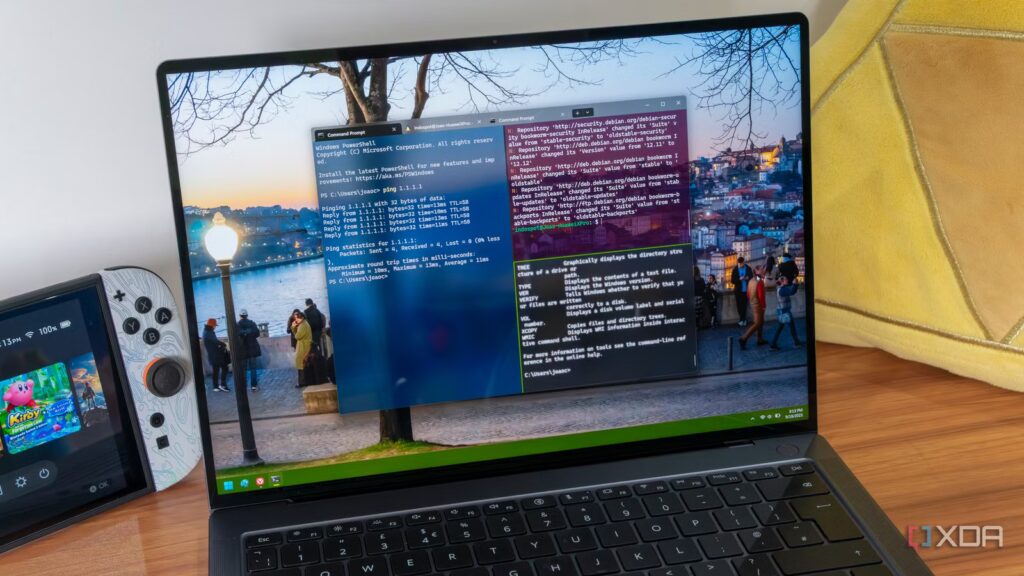
The default terminal experience in Windows has come a long way since the original command prompt. Windows Terminal was a huge improvement, bringing the operating system its first terminal emulator that felt truly modern, even putting it in the same league as what Linux had been offering for years. I was happy with Windows Terminal for a while, but I realized how much better it could be after stumbling upon WezTerm.
WezTerm is a terminal emulator that doubles as a session multiplexer, sort of like having a built-in tmux. It’s GPU-accelerated, written in Rust, and runs on Windows, Linux, macOS, and BSD. Being cross-platform was a big selling point for me because I can get a familiar terminal experience across my Windows and Linux systems. I just need to port my custom config to different systems, but that part’s easy.
Windows Terminal still works well and is a very serviceable default choice, but its limits are easy to reach, and customizations only get it so far. To really take the terminal experience further, a third-party alternative like WezTerm is necessary. After using a terminal that lets me script out my customizations in Lua and drag my config with me across operating systems, it’s tough to go back to Windows’ default terminal.
I gave the Windows Terminal the “Pimp my Ride” treatment and it’s so much fun now
Why settle for a drab terminal existence?
WezTerm packs features that Windows Terminal doesn’t
Features that change functionality, not just looks
Of course, WezTerm has all the polish you could want, but you can get that from Windows Terminal or other third-party emulators, too. The big draws for WezTerm are two important features that go beyond cosmetics: configuration in Lua, and multiplexing. Windows Terminal stores settings inside of a JSON file, which works fine for simple tweaks. WezTerm, on the other hand, uses a Lua config file called wezterm.lua and can handle actual code, like conditionals and other logic, to make the terminal dynamic. I’ve taken advantage of this to configure key bindings that behave differently depending on which pane is active. It’s easy to experiment and tweak your setup because the terminal hot-reloads every save, so you see the changes instantly.
As for multiplexing, I had always run tmux and thought it was good enough, but that was before realizing how convenient it is to have it built right into the terminal. The problem with tmux, or any other separate multiplexer, is that it comes with its own config language and key bindings, and it sometimes runs into small issues with color support and mouse behavior. WezTerm’s in-house multiplexer has all the typical staples like panes, tabs, and workspaces, all out of the box. Each pane has its own scroll buffer, which works seamlessly without entering copy mode first. I ditched tmux right after installing WezTerm and have yet to miss it.
Having SSH at the multiplexer level is a game-changer for anyone who frequently connects to remote servers. If I need to connect to a particular server, I can just open it in a new tab, just as I would any other tab. Remote hosts are defined as SSH domains inside your WezTerm config, and connecting to the servers is just like dropping into a local pane. Since I regularly bounce between local and remote work, it has created a much smoother experience. In Windows Terminal, the closest you can get is a custom profile that automatically runs the SSH command when you open it, but that doesn’t feel like a continuous environment like local panes do.
Customization is what makes WezTerm powerful
Configuration will take a good 15 minutes

The only downside I’ve found to WezTerm is the initial time investment required to set it up and personalize it. It’s not a simple drop-in replacement for Windows Terminal, because without taking the time to customize it for your workflow, there’s little point in migrating to it. I also didn’t know much about Lua when I first started experimenting with different settings, so that was its own learning curve. Describing the functionality I wanted to LLMs and letting it bootstrap the config made the process much faster.
I tried getting Windows Terminal up to par with WezTerm, and it proved much more difficult than simply installing WezTerm and applying the personalizations I needed. Most of the sheen, like ligatures, colors, and syntax highlighting, is ready out of the box. The multiplexer is ready to go, too. So, even if you do nothing special to it, WezTerm still has Windows Terminal beat. It’ll still require some Lua configuration to squeeze the rest of the power out of the emulator.
If you live in the terminal, WezTerm is so worth it
Some people think that a terminal emulator should be nothing more than a boring black box and a blinking cursor. That’s valid, but if you spend any considerable amount of time in the terminal, then you’re only doing things harder on yourself by ignoring a tool that has built-in multiplexing and a fully scriptable config. After getting it up and running, finding new ways to tweak it and perfect your workflow becomes fun.
