
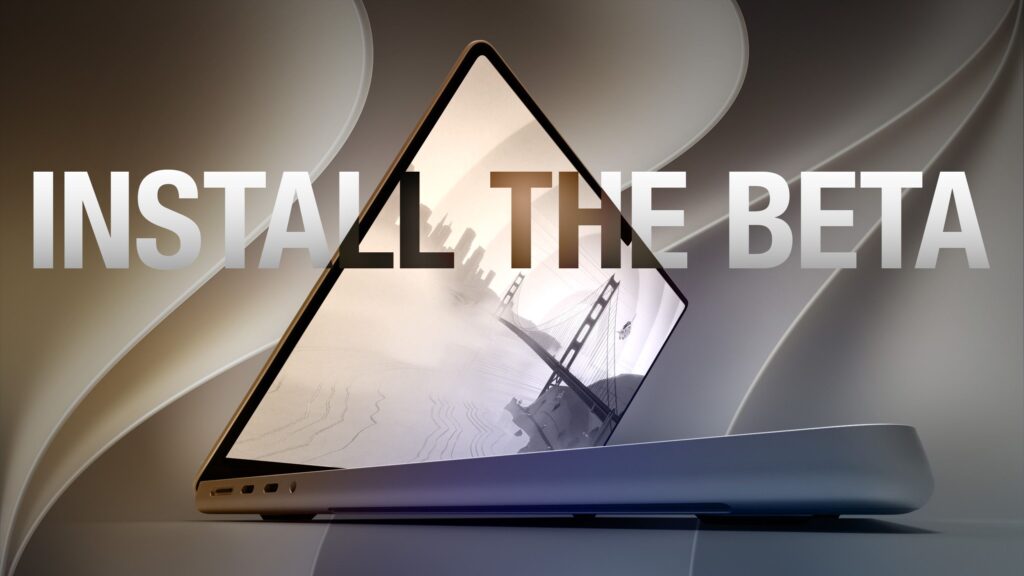
Apple has made the first public beta of macOS 27 Golden Gate available for testing ahead of the new Mac operating system’s official release in the fall. Keep reading to find out if you should install it on your Mac, and if so, how to do it.
Accessing the macOS Golden Gate public beta is simple and can be done by enrolling your Mac in Apple’s free Apple Beta software program. The steps for installing the software on your Mac are provided near the end of this article, but before you get started, here are a few things to consider.
Should I install the macOS Golden Gate public beta?
With macOS Golden Gate, Apple includes the same Siri AI features as iOS 27 and iPadOS 27, accessible through Spotlight with the keyboard shortcut Command + Space. Siri can search the web, find information in your photos, emails and messages, answer questions about what’s on your screen with visual intelligence, and take actions within and between apps. A dedicated Siri app also supports ongoing conversations.
Apple has also refined the Liquid Glass design introduced last year. A new transparency slider lets you adjust the overall effect of the system, while updated opacity improves readability by streaming complex content better. Additional interface improvements also add depth and separation, making it easier to identify which window is active. There are many more improvements beyond the above, so the availability of the public beta will undoubtedly generate a lot of interest among Mac users.
But before you commit, keep in mind that Apple recommends against installing macOS beta updates on your primary Mac. As stable as you’ve heard anecdotally, this is beta software, which means there are almost certainly bugs and issues that may prevent some software from working properly or cause other problems with the system. Indeed, one of the reasons Apple is releasing the beta early is so users can report issues and help Apple debug them. If you have a spare Mac, by all means use it, otherwise consider waiting for general release in the fall.
Is my Mac supported?
The update confirms the end of Intel Mac support. Apple said last year that macOS Tahoe would be the last version to run on pre-Apple silicon machines, and macOS 27 makes it official – you’ll need an Apple silicon Mac to install it.
Here are the Macs compatible with macOS Golden Gate:
- MacBook Neo (2026)
- MacBook Air with Apple Silicon (2020 and later)
- MacBook Pro with Apple Silicon (2020 and later)
- iMac with Apple silicon (2021 and later)
- Mac mini with Apple Silicon (2020 and later)
- Mac Studio with Apple Silicon (2022 and later)
- Mac Pro with Apple Silicon (2023 and later)
Four models running macOS Tahoe were not selected this year. They include the MacBook Pro (16-inch, 2019), MacBook Pro (13-inch, 2020, four Thunderbolt 3 ports), iMac (2020), and Mac Pro (2019).
Don’t forget to back up your Mac
Make sure to back up your Mac using Time Machine before installing the software using this method, otherwise you won’t be able to revert to the previous version of macOS if something goes wrong.
How to install the macOS Golden Gate public beta
- Go to Apple’s beta software program website and sign up using your Apple account credentials, then agree to the terms and conditions if necessary.

- Then open System Settings on your Mac and select General ➝ Software update.
- Search for “Beta Updates” and click the information symbol (i) next to it.
- Choose macOS 27: Golden Gate public beta in the drop-down list.
- Click Upgrade now to begin the update process to macOS 27.
/article-new/2026/07/apple-beta-software-program-2026.jpg)
/article-new/2025/06/1install-macos-26-beta.jpg)
/article-new/2026/07/install-macos-27-beta1.jpg)
/article-new/2026/07/install-macos-27-beta2.jpg)
That’s all you need to do. The installation process will complete like a standard macOS update, so sit back and let the installation complete, after which your Mac will boot straight into the macOS Golden Gate beta.
