
Windows comes with a fair share of tools, but some of Microsoft’s best apps require an additional download to install. It wasn’t until I reinstalled Windows that I realized which of these tools were missing in a new system. Since they are published by Microsoft, it is natural to assume that Windows already comes with all of the publisher’s most useful utilities, but that is not the case.
I’m not talking about experimental tools or niche programs either. Microsoft has a catalog of polished software that just isn’t included in Windows 11 for one reason or another, and some of them are great workflow tools. Once you’ve used them, you realize how incomplete a default Windows installation seems.
Visual Studio Code is the best free app from Microsoft
But you will have to install it first
Although it is one of Microsoft’s most popular software, VS Code does not come with Windows. It is a free code editor that has quickly become the go-to choice for a large number of developers over the past few years. I figured if I didn’t edit code, I didn’t really need VS Code. But the app has come so far that many, myself included, consider it an integral part of their workflow, even if they aren’t developers. The amount of extensions available means it can fit any type of workflow, no matter what language, linter, or formatting you plan to use. Integrated Git alone also makes the app worth it for many people.
Some users find VS Code too heavy for simple text editing, but it is no longer a monopolistic system like before. Although this is an Electron application, it seems too much on older machines with 8 GB of RAM or less. Lightweight apps really can’t compete with what VS Code offers in its extension ecosystem, so I’ve stopped considering them as viable alternatives.
Microsoft’s Best Tools for Workflow Customization
PowerToys is a free suite of tools from Microsoft that contains dozens of utilities. I consider it an essential addition to all my Windows installations, and it’s surprising that some of these tools don’t come preinstalled. The two features that have the biggest impact on my workflow are FancyZones and PowerToys. FancyZones is a window layout tool that lets you create custom snap points on your screen. It’s like a customizable extension of the few default areas Windows already has when you drag an application window up and around the edges of the screen. If you tend to have multiple windows on screen simultaneously, this is a total game changer.
PowerToys Run is all about launching apps and performing actions faster and more efficiently. You bring it up with a keyboard shortcut, type what you want to open and press Enter to launch it. This allows you to avoid interacting with the Start menu or taskbar, and you don’t even need to grab your mouse. Besides launching apps, you can also use it for quick calculations (triggered by typing math expressions) or web searches (adding a question mark to everything you type).
Sysinternals lets you see everything Windows is hiding
Startup management and a good task manager
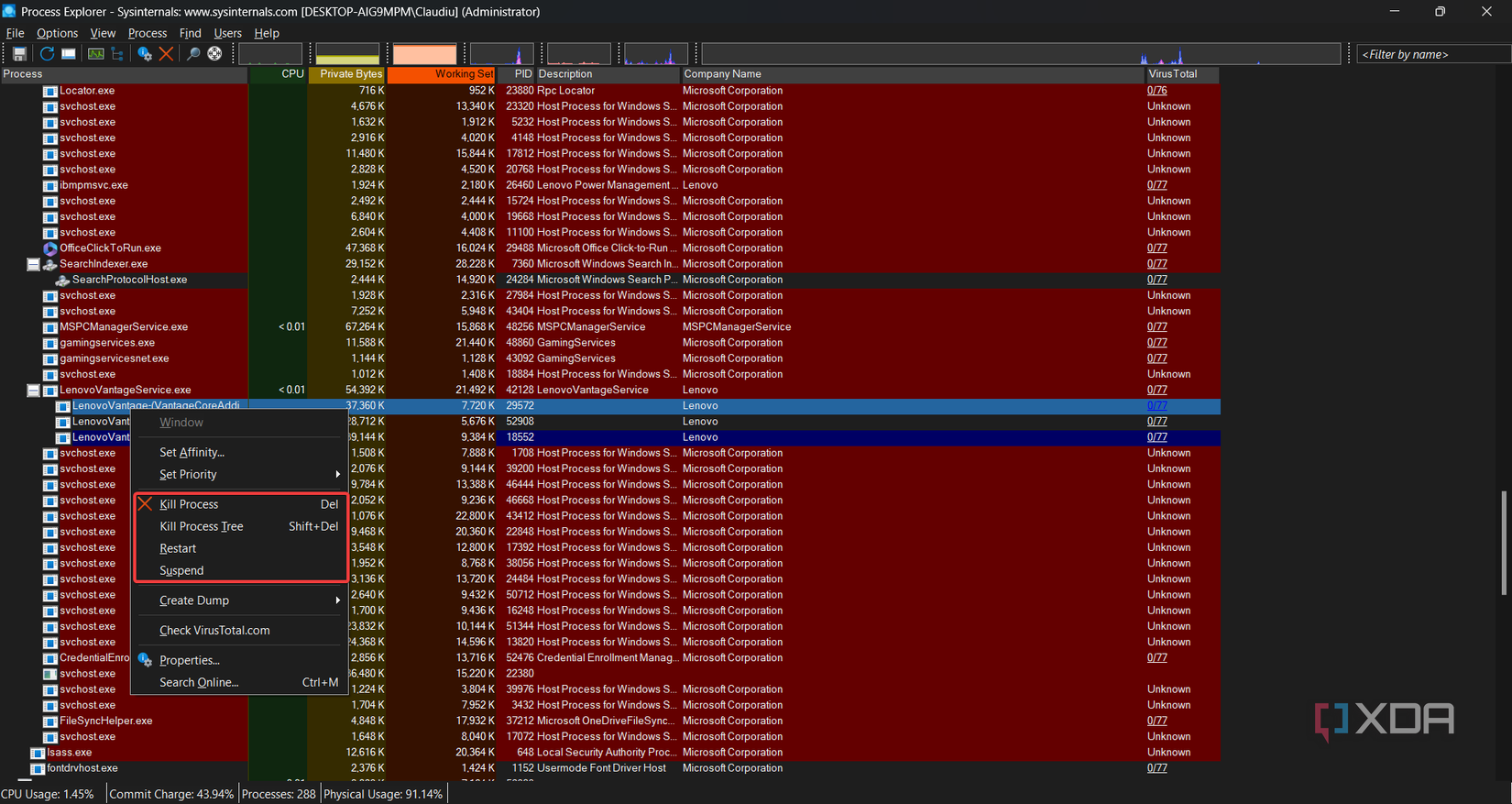
Sysinternals is another suite of free tools provided by Microsoft. They are more system-focused than PowerToys, but a few of the tools provided are great for troubleshooting and optimizing workflows. Process Explorer is one of the tools included, and it’s a lot like Task Manager on steroids. It gives you complete details of what each process actually does on your computer, as well as the full process tree associated with each. I use it to find buggy processes and force them to close, but it’s also great for monitoring resource usage and revealing which app is sucking up all your RAM.
Autoruns is the other essential tool that comes with Sysinternals. It gives you a complete view of everything that’s set to open automatically on your system and goes beyond what the “Startup Applications” tab in Task Manager shows you. Run it once and you will be surprised to discover some of the background processes that have been generated without your knowledge. Since I eliminated a few unnecessary processes during auto-open, Windows is ready to use sooner after startup.
Power Automate Desktop is the answer to repetitive tasks
Automating tasks that cannot be easily scripted

Power Automate Desktop is Microsoft’s free automation software. Typing the name into the Start menu displays it, but you have to click on it to let it install and start using it. Power Automate is a great way to create automation for repetitive tasks, without needing to rely on a scripting language. Instead, you use a graphical user interface to create workflows. Common examples of its use include filling out forms, batch renaming files, or collecting data from other applications. It can even interact with GUI programs, which would be more tedious to code in a PowerShell script.
I don’t find Power Automate to be as sophisticated as other automation software like n8n, but it fills the office automation niche well and integrates nicely with other Microsoft applications, like Office. Setting up tasks that pull data from Excel or send weekly emails via Outlook is seamless. For all other simple tasks, the drag-and-drop interface makes setup quite simple.
Integrated access to all Linux workflow tools

Windows Subsystem for Linux isn’t installed by default, but it’s fairly simple to enable with a single PowerShell command. Once installed, you have access to all the Linux tools that Windows has no great equivalent. Linux tools that have become part of my Windows workflow include rsync for large file backups and transfers, find for locating files (File Explorer is terrible for this), and grep for quickly isolating strings from a batch of files.
The best part about WSL is that it is not just a Linux virtual machine. Well, that’s true, but it’s one that integrates directly with Windows and has full access to your file system. This means you can run Linux commands on files on your system, without needing to change environments. I open a WSL tab in Windows Terminal whenever I need to run a backup or when I’m tired of waiting for File Explorer to finish searching.
A default Windows installation is just the starting point
None of these tools present themselves to you, but they are all available for free and fit well into a Windows workflow because they all come from Microsoft. After installing them, Windows 11 out of the box feels like it was missing something from the beginning.
