
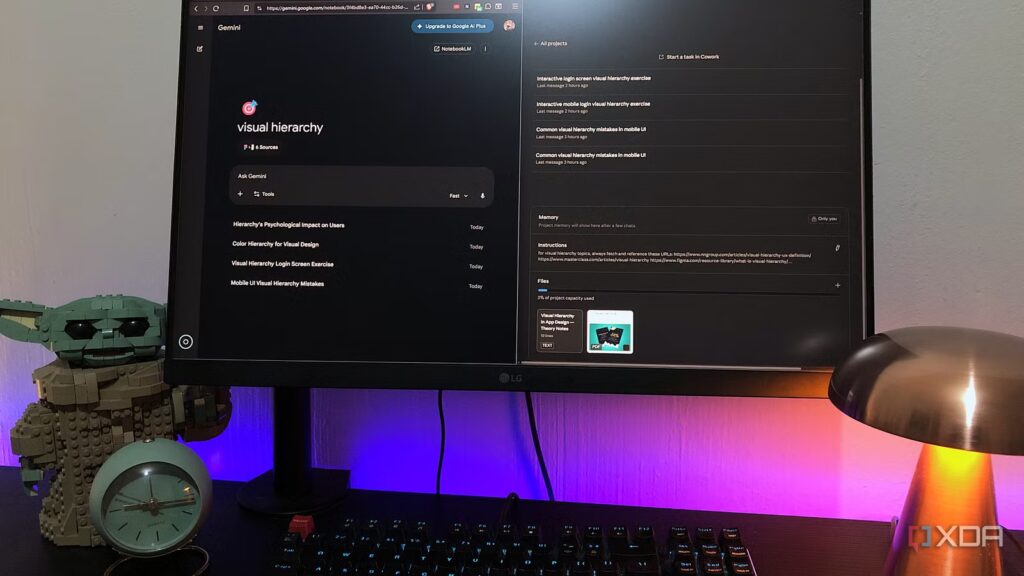
Claude Projects has been part of my workflow for a while now, I don’t think I can imagine not using it at this point. When something becomes reliable enough, you just build around it and forget to question it. I use it to keep long-running research contexts alive and to execute design briefs without re-explaining the background every time I open a new discussion, to name a few. It’s a boring tool at the best of times.
Then Gemini Notebooks was dropped – Google’s new workspace, directly synced with NotebookLM. I couldn’t help but notice all the similarities to Claude Projects. So I wanted to test them side by side to highlight their strengths and weaknesses, and also, ultimately, determine which of them exactly belonged where it belonged in my AI stack.
Claude’s Projects feature replaced my notes, bookmarks, and browser tabs overnight
Keeping the context, without the clutter
Summary of projects and notebooks
Familiar concept, different execution

Claude Projects has been around since mid-2024, long enough that there is a well-established workflow around it. Each project has its own knowledge base, its own personalized instructions, and its own discussions that remain separate from each other. Basically, nothing goes into the knowledge base unless you deliberately put it there. It’s meant to be a sort of container for the same topic or concept, but you can create several different threads in this container.
Gemini Notebooks is very new: paid users got it first, the free tier followed soon after, and it dropped into mobile apps literally a day before I wrote this. Notebooks are what happens when Gemini and NotebookLM are merged into a synchronized workspace – so that sources or instructions added in one automatically appear in the other. The architecture is similar to Claude projects, except that it is not an independent knowledge base and instructions, but everything you already have in your NotebookLM notebook. Like projects, you can create separate discussions in a Gemini notebook. The only difference is that these discussions also appear as sources in the NotebookLM interface.
In the free Gemini tier, you can have 100 notebooks with 50 sources each. For paid versions, this ranges from 100 to 500 notebooks, with 100 to 600 sources each. In the free Claude tier, you get 5 projects and unlimited projects in Pro. The maximum file size is 30 MB for both free and paid versions, with no stated limit on the number of files you can have in the knowledge base.
To really test them, I created a new project and notebook from scratch for something I’ve already worked on, so I could time it if the output was disabled.
The structure of the workspace
What it’s like to use projects and notebooks
My first criterion is simply the feel of both tools. So their user flow, features, etc. The biggest difference is how projects and notebooks handle web links.
There is no dedicated web link feature in Projects that crawls or indexes a URL the moment it is added. You can add the links as plain text to the instruction box and have Claude fetch these links with his web_fetch. There’s a good chance that Claude will retrieve these links with web search enabled, but there’s no guarantee, and it will probably also do its own work and pull from other sources that you haven’t added. So I recommend just downloading the web links: Ctrl + P to save them as PDF, then add them as a file to your project. It’s an extra step, but it works perfectly.
Of course, NotebookLM was designed from the ground up to handle web links natively: you just drop in a URL and it parses and indexes it on the spot. This carries over directly to Gemini laptops, so no workaround is necessary; you can just paste the links.
The rest of their frameworks are very similar. Both give you a knowledge base, personalized instructions, and a space that brings all your discussions under one roof. Both also maintain context between sessions, and Notebooks in Gemini keeps all sources active like in Projects, so you can’t selectively enable or disable them like in NotebookLM (which can be an advantage or disadvantage depending on your workflow). Another cool thing: Both allow you to add discussions you’ve created independently to a notebook or project at any time. So once you realize that a discussion could benefit from sources and instructions, you can include it in the container.
Overall, same bones, different interfaces, and one of them syncs with a separate tool.
How everyone manages my sources and instructions
Same context, different relationships with them
As I mentioned, I gave everyone the same sources and instructions. Here I’m just doing a bit of theory about visual hierarchy in app design, as well as some interactive visual practice. Ultimately, how each responds depends on what templates I’m using, what level I’m at, my overall system prompt, and its native features. So I didn’t expect them to do the same thing; the test was to see to what extent each person actually referred to what was inside the notebook or project.
Claude started with the center point, generated his own visual comparison, and followed the formatting rules I had set. Gemini gave me a nested list with the subheadings “The Error / Why It Happens / The Impact” – exactly the kind of exit my instructions were supposed to prevent. Claude was clearly working from what I had given him. Gemini felt like he took one look at the sources and then did what he wanted anyway. It wasn’t terrible by any means, Gemini’s answers were still very coherent and clearly taken from the right resources, it just didn’t follow my format.
I will point out, however, that in the past, whenever my instructions in a project became too long, Claude would sometimes bypass them and override them with his own logic. So I would have to go back and refine the instructions to stop this behavior. That just didn’t happen here because the instructions were more compact and easier to digest.
So I moved on to visuals. Here I’m using Claude’s online artifacts and visuals, as well as Gemini’s Canvas functionality. Basically, I wanted to practice visual hierarchy, but the goal wasn’t to see which one gave me the best visuals or interactivity, it was, again, to see how well they followed my instructions. Gemini’s Canvas gave me my practice visual, and according to my notebook’s instructions, it actually followed the format I requested: “light background, simple typography, no decorative elements.” I kind of expected Claude to deliver here because he’s the king who follows directions for visuals, and that’s exactly what he did.
I replaced Claude Pro with a local 9B model for a week, and finally found out what I was paying $20 a month for
The gap was smaller than expected
Not a replacement, but not useless either
Claude Projects wins this one, and I can vouch for it because it has been following my instructions almost to the letter for months now – most time at least, as long as the instructions are not contradictory or too long. I would also appreciate it if Anthropic added real web link functionality for sources.
But Notebooks in Gemini is only a few weeks old at the time of writing, so it would be unfair to cancel it. The instructions generally work well in NotebookLM, but I suspect that because Gemini works on broader capabilities, its responses can be a little more creative and extensive.
Where Notebooks earns its place is as an extension of NotebookLM in particular – when I want a conversational AI to work with my existing notebooks with outside context, it’s really useful for that. However, for overall instructions, Gemini Gems handles this better than laptops. So Claude Projects remains, and for now, Notebooks only integrates into a NotebookLM workflow.

- Operating system
-
Windows, macOS
- Individual pricing
-
Free plan available; Pro plan at $17/month
- Group rates
-
$100/month per person for the Max plan
