
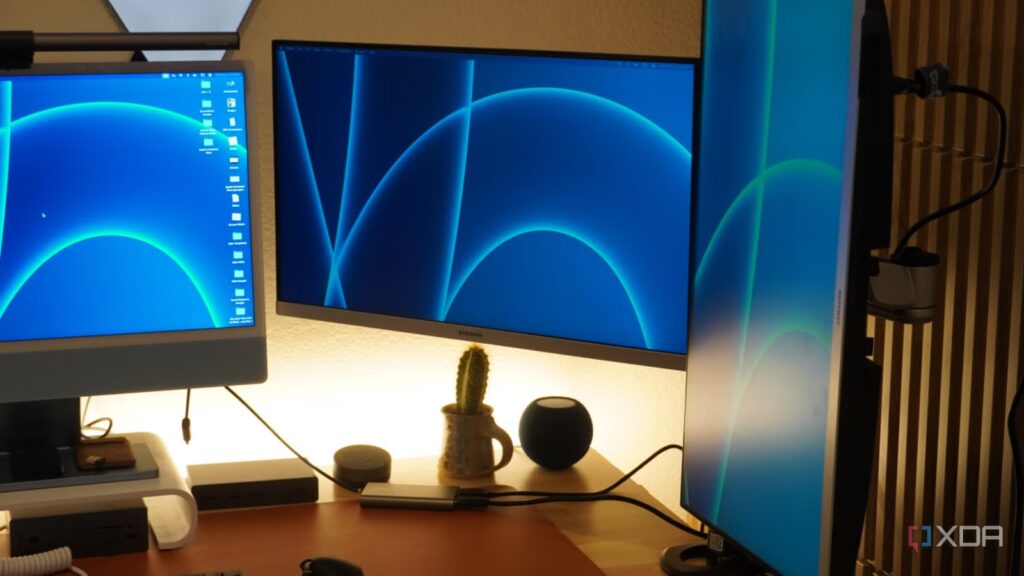
Sometimes the best upgrades you can make to your PC are on your desk rather than inside the case. Let’s say you have 32GB of DDR5 6000 RAM and enough RGB to view your PC from space. Yet after four hours of work or play, your eyes burn, your neck is stiff, and your desk is cramped.
You spend thousands of dollars on the PC engine, but end up skimping on the cockpit. Spending $30 on something small like a monitor light bar or monitor arm does a lot more for you and your daily experience than an extra 5FPS or slightly faster RAM sync ever could. We’ve spent years obsessing over raw specs and neon lights, but the most transformative PC upgrade, especially one under $30, isn’t the internal hardware; it’s ergonomics and sensory refinement.
5 Upgrades to Spend on Instead of PC Components in 2025
Instead of buying a CPU or GPU, invest in these essential upgrades to improve your PC setup
These two upgrades will change your configuration
And they cost less than a fancy burger
You have two options to make a significant upgrade to your desk by spending just $30, and the first is to use a monitor light bar. The problem is that if you take a standard desk lamp it creates reflections on the screen and overhead lights create shadows. It can be easy for many PC gamers to spend hours at their desk in the dark just to avoid these problems, but then you’ll be dealing with constant eye strain, which can cause headaches and other problems in the long run.
The solution to this problem, at $30, is a USB-powered light bar that attaches to the top of your screen. The science behind it is that it uses asymmetrical lighting; it projects light downward onto your keyboard and workspace without a single photon touching the monitor glass. As a result, you declutter your desk by removing your bulky desk lamp, and the monitor light bar creates a high-end studio ambiance for a fraction of the cost of Govee or Hue light strips.
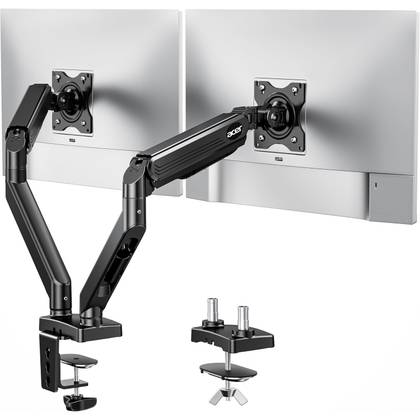
- Max. Display size
-
34 inches
- Max. Weight
-
19.8 pounds per arm
- Height adjustment
-
Up to 18.1 inches
- Tilt adjustment
-
+90°/-60°
- Color options
-
Black
By grabbing this Acer Dual Monitor Arm, you can mount a dual monitor setup for just $70.
But if that’s not exactly what you’re looking for or it just doesn’t solve any problems for you, then another product that probably will is a gas spring monitor arm. The problem is that standard monitor stands are stealers of office real estate. They’re bulky, static, and usually too low, forcing you to slouch. While some of them are height adjustable, not all are, which can make for a frustrating gaming or workspace experience.
The $30 solution here is a gas spring arm. This will truly transform your office space as you will suddenly reclaim 20% of your desk where the bulky plastic legs used to be. It’s also much more ergonomically viable, as you can instantly move the screen to eye level, improving your posture. It’s also much more flexible, as you can move the screen five inches closer for sweaty FPS gaming, then put it back in place to watch a movie or work in general.
Going for these is better than RGB
The aesthetics are great, but so are the health benefits

Both of these upgrades significantly outperform traditional upgrades. The impact of $30 compared to common PC spending for things like RGB, case fans, or RAM is exceptional. If you go with RGB, it’s purely aesthetic, whereas this upgrade is aesthetic and functional. It may be better for your eyes with a light bar or better for your posture with a monitor arm.
Unless your PC literally melts, two extra fans probably won’t change your life. This change is felt with every second of use, and going from 32GB to 64GB of RAM costs significantly more than $30 these days, due to the current RAM crisis. Fixing your eye strain is a more transformative day-one improvement that you can actually make on a budget.
When making these improvements, there are a few secret tips to keep in mind. For the light bar, make sure you use the monitor’s USB port to power it. This means that it will automatically turn on and off whenever the screen is turned on or off, and you won’t have to worry about actually turning it on. Another important factor is temperature control. Make sure not to use light that is too bright or too cold, as this can cause additional eye strain. Opt for a warmer setting to reduce exposure to blue light.
For the arm you can use cable routing. Use the holes in the arm to hide your monitor’s power and display port cables, achieving a true floating screen look and ensuring your screen remains flexible. The cables will move with the arm every time you want to pivot.
Take care of yourself first
Your PC comes next
We often forget that we, as a user, are the most important part of the PC system. This means that we need to monitor our health and our bodies when we use our computers all day. If you have $30 in your pocket, don’t buy a new Steam game or a cheap LED strip. Buy something that will actually make you happy to sit at your desk for another five years.
