
We’ve all seen the news reports, stories, and videos surrounding AI development and large language models (LLMs) hosting with huge encompassing data centers. These things can draw similar amounts of power as small cities, and they only seem to be replicating worldwide as we slowly incorporate AI and chatbots more into our daily lives. As a tool, they’re great at offloading mundane tasks, quickly looking something up, or even interacting with other parts of your home. Throw in a smart home platform like Home Assistant and your own self-hosted LLM, and you’ve got one powerful local setup.
What is problematic when looking to self-host your own LLMs is the system resource requirements. These models, notably the larger ones with better context, require incredible amounts of memory, which is fine when we have the option to load up a motherboard with 128 GB, if not more. The issue there is that RAM is actually really slow, at least compared to VRAM on a GPU or CPU cache. The former is the best choice for running LLMs with Nvidia GPUs and tool sets leading the way.
But how much do you need to spend on a GPU to comfortably run an LLM with decent results? Turns out, it’s likely considerably less than you’d naturally assume. There’s a myth that you need to spend four figures on a GPU to make the most of a locally hosted LLM, but that couldn’t be further from the truth. Don’t believe what you see on social media and in videos with systems running RTX 5090 GPUs. All you need is a budget card or even a CPU if you don’t mind using smaller models with slightly longer wait times.
Bigger is better
But you don’t always need the best
Look, before you sound off in the comments about how I’m wrong and using the best GPU you can reasonably afford is the right way to go about hosting LLMs at home, I agree with you. An RTX 5090 is the best card for the job. It has plenty of memory and some beefy internals to handle processing. The RTX 3090 is considered the best bang for your buck, but still, that GPU costs a small fortune, especially in today’s world. But we won’t need to be running 32B models to make the most of LLM capabilities.

Quiz
You don’t need a beefy GPU to run a local LLM
Trivia challenge
Think you know your way around local AI? Test your knowledge of running LLMs without breaking the bank.
HardwareAI ModelsPerformanceSoftwareRAM & CPU
Which popular open-source tool is widely used to run large language models locally on consumer hardware without writing any code?
That’s right! Ollama is a lightweight, easy-to-use tool that lets you download and run LLMs locally with simple terminal commands. It handles model management, hardware detection, and even exposes a local API — making it one of the most accessible entry points for local AI.
Not quite — the answer is Ollama. While TensorFlow Serving and CUDA Toolkit are real AI infrastructure tools, they require significantly more setup. Ollama is purpose-built for running LLMs locally and works on Mac, Linux, and Windows with minimal friction.
Meta’s open-weight model family, commonly run on consumer hardware, is known by what name?
Correct! Meta’s Llama (Large Language Model Meta AI) series — including Llama 2 and Llama 3 — has become a cornerstone of the local AI movement. Because Meta releases the weights openly, the community has built countless quantized versions optimized for consumer hardware.
The correct answer is Llama. While Falcon, Gemma (Google), and Mistral are all legitimate open-weight models you can run locally, Meta’s Llama series is arguably the most widely adopted and has the largest ecosystem of community tools and fine-tuned variants.
When running an LLM locally without a dedicated GPU, which hardware component becomes the primary bottleneck for inference speed?
Exactly right! When a GPU isn’t available, LLMs run entirely in system RAM. Both the capacity (you need enough to hold the model) and the memory bandwidth (how fast data moves to the CPU) directly determine inference speed. DDR5 and multi-channel configurations can make a meaningful difference.
The answer is system RAM capacity and bandwidth. While CPU clock speed matters, the real constraint is getting model weights in and out of memory fast enough. A model that doesn’t fit in RAM will either fail to load or spill to disk, causing dramatically slower performance regardless of CPU speed.
What does ‘quantization’ mean in the context of running LLMs on consumer hardware?
Spot on! Quantization reduces the bit-width used to store model weights — for example, from 32-bit floats down to 4-bit integers. This can shrink a model’s memory footprint by 4–8x with only a modest drop in output quality, making billion-parameter models runnable on everyday laptops.
Not quite — quantization means reducing numerical precision of model weights. A 7-billion parameter model at full 32-bit precision might need over 28GB of RAM, but a 4-bit quantized version can fit in around 4–5GB. It’s one of the most important techniques enabling local AI on affordable hardware.
A ‘7B’ model like Llama 3 7B refers to what specification of the model?
Correct! The ‘B’ in model names like 7B, 13B, or 70B stands for billions of parameters — the individual numerical weights that define the model’s behavior. More parameters generally means greater capability, but also higher memory requirements. 7B models strike a sweet spot for consumer hardware.
The answer is 7 billion parameters. Parameters are the learned numerical values inside the neural network that encode everything the model knows. A 7B model has 7 billion of them, which is why even quantized versions need several gigabytes of RAM — and why 70B models remain a challenge for most consumer setups.
Apple Silicon chips like the M1, M2, and M3 are considered exceptionally well-suited for local LLM inference primarily because of what architectural advantage?
That’s right! Apple Silicon’s unified memory architecture means the CPU and GPU share the same high-bandwidth memory pool. A MacBook with 16GB or 32GB of unified RAM can load and run LLMs at speeds that rival or exceed systems with discrete GPUs, making Apple laptops surprisingly competitive for local AI.
The correct answer is unified memory. Apple Silicon doesn’t support CUDA (that’s NVIDIA-specific), but its unified memory design eliminates the bottleneck of transferring data between system RAM and a separate GPU’s VRAM. This lets models run fast even without a discrete graphics card, which is why tools like Ollama and LM Studio perform so well on Macs.
LM Studio is a graphical desktop application for running local LLMs. What is one of its most useful features for beginners?
Exactly! LM Studio gives users a polished GUI to browse, download, and chat with local models — no terminal or coding needed. Its built-in local server also mimics the OpenAI API format, so you can point compatible apps at your own machine instead of the cloud.
The correct answer is its built-in chat interface and local API server. LM Studio is entirely offline and free to use — it doesn’t connect to OpenAI or require a subscription. Its approachable design has made it one of the most popular on-ramps for people exploring local AI for the first time.
If you want to run a quantized 13B parameter LLM locally at a usable speed on a CPU-only system, what is the generally recommended minimum amount of system RAM?
Correct! A 4-bit quantized 13B model typically requires around 8–10GB of RAM just to load, which means 16GB is the practical minimum for a usable experience — leaving some memory for your OS and other processes. Going below that often results in the model using slow disk swap, making inference painfully sluggish.
The answer is 16GB. While a 4-bit quantized 13B model can technically fit in under 10GB, you still need headroom for your operating system and background tasks. With only 8GB total, your system would likely resort to swapping to disk, turning a response that should take seconds into one that takes minutes.
Your Score
/ 8
Thanks for playing!
Higher-end GPUs unlock more performance for running better models, but even 7B or smaller options can prove useful when used appropriately. With the right hardware configuration, you can run genuinely useful local LLMs. Before you even consider hosting your own LLMs, it’s vital that you learn that getting one to work locally doesn’t equate to the latest GPT or Claude-level reasoning. It’s about getting a chatbot to respond in a reasonable time with up to 10 tokens per second, producing coherent and context-aware replies. These LLMs should be able to help you with everyday tasks.

5 ways I use a self-hosted LLM to help me be more organized and more productive
When used right, a local LLM is one of the best tools anyone can have in their arsenal.
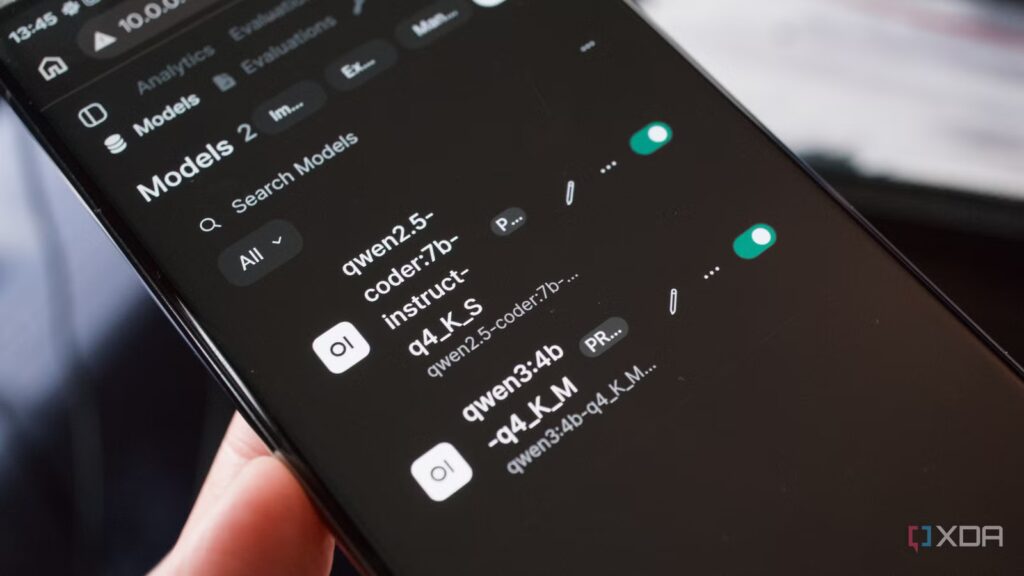
It’s precisely how I have my own LLMs configured using Open WebUI, Ollama, and a Minisforum U850. This mini PC has an Intel Core i5-10210U processor. Eight physical cores, a maximum turbo speed of 4.2GHz, and plenty of cache to run some self-hosted apps and containers. So, I decided to launch two LLMs on the hardware, Qwen3:4b and Qwen2.5-coder:7b. These are small models but have proven useful in handling submitted queries. Turns out, I don’t require a 70B parameter model. Even using an RTX 4060 Ti with 16GB of VRAM was largely overkill.
That system alone pulled more than 400 watts total when running some processes. That’s fine for using AI and allows for some quick responses and solid context for the job, but it also ups the power bill considerably. This U850 mini PC draws just 50 watts. I’m saving almost 90% of the power and sacrificing token speed and context. Instead of around 25 tokens per second, I’m pushing around 5. It’s not fast, by any stretch, but it works surprisingly well, and that’s without a dedicated GPU.

7 things I wish I knew when I started self-hosting LLMs
I’ve been self-hosting LLMs for quite a while now, and these are all of the things I learned over time that I wish I knew at the start.
Use what you already have
Old GPUs can work surprisingly well
There’s a whole culture within the community to push for the highest scores in leaderboards, utilizing overkill hardware that many can only dream of obtaining. This causes a gap to grow between what’s possible with the right parts and what’s actually useful in daily tasks. It’s why you often see laptops and other devices highlight AI capabilities with lower figures than dedicated GPUs. These tests use the largest models possible for the best accuracy scores, but all this noise doesn’t reflect daily usage. Infuencers, media, and other outlets likely use enthusiast-grade hardware.
This skews the perception of baseline requirements. You don’t even need a GPU to run an LLM. So long as your CPU is supported, you have enough RAM, and you choose a model wisely, you can enjoy using a locally hosted chatbot without spending a penny more. Training these LLMs takes much more power than inferencing, the latter of which happens locally. There are also countless tweaks you can make to get more from your hardware, which is something I continue to play with to see how far I can push the mini PC. But the magic of LLMs is quantization.
There are also countless tweaks you can make to get more from your hardware, which is something I continue to play with to see how far I can push the mini PC
.
By reducing model precision, moving from FP16 to 8-bit, for example, you can save massive amounts of memory usage for a slight accuracy hit. That 7B model I’m running on 16GB of RAM would typically require 14 or more at full precision. But at Q4 (4-bit quantized), you’re looking at around 5GB when I’m running qwen3:4b. That changes everything. Even with a powerful GPU at hand, quantization can be the difference between running a smaller model and a larger one with far better capabilities. Integrated graphics can be used, which can avoid dedicated cards altogether, but even an old GTX 1080 with 8GB of VRAM could make a huge difference.
Offloading as much to any GPU can really transform your self-hosted LLM experience. CPU-only setups are rather capable with optimized runtimes. Old GPUs can handle smaller models with great response times, and using the right model can be the difference between one with diminishing returns for general tasks and one that’s fast, efficient, and largely good enough. It’s important to remember that LLMs are continuously evolving. Small models are absolutely rocking it these days with vast improvements in training data, loads of fine-tuning, and instruction-following.

I built a local LLM server I can access from anywhere, and it uses a Raspberry Pi
It may not replace ChatGPT, but it’s good enough for edge projects
Picking the right models
Use specific LLMs for different tasks

Take my setup here with the U850. I have qwen3:4b for general usage and integration with other platforms and qwen2.5-coder:7b for specifically aiding with coding and other related queries. General models can largely handle most tasks, but specific LLMs designed for use in these areas can outshine larger general counterparts, unlocking more performance without touching hardware or making a single tweak.
It’s a slightly slower Claude or ChatGPT, but nothing leaves my network.
It’s a slightly slower Claude or ChatGPT, but nothing leaves my network. I can completely lock down the LLMs, so no external access is allowed. That’s what makes this truly unique in that I can tap into these powerful models without an active net connection, and no data is shared with any third-party without my consent. It’s also great for travelling too, especially if your laptop has enough performance to run a model locally. Host an LLM within the OS, and you’ve got all that power at your fingertips, which could be several thousand feet up in the air.
But that’s not to say you shouldn’t aspire to run powerful GPUs for LLMs, and I likely will look to build a dedicated platform for Open WebUI and Ollama with a dedicated card for running larger models. Without going overboard, I could more than double the response speed, which would make it far more enjoyable to use for heavy coding or research conversations. But there’s no right or wrong setup for using locally-hosted LLMs. It all comes down to what you have available and which models you plan on running.

I ran local LLMs on a “dead” GPU, and the results surprised me
My Pascal card may not be ideal for intensive workloads, but it’s more than enough for light LLM-powered tasks
