
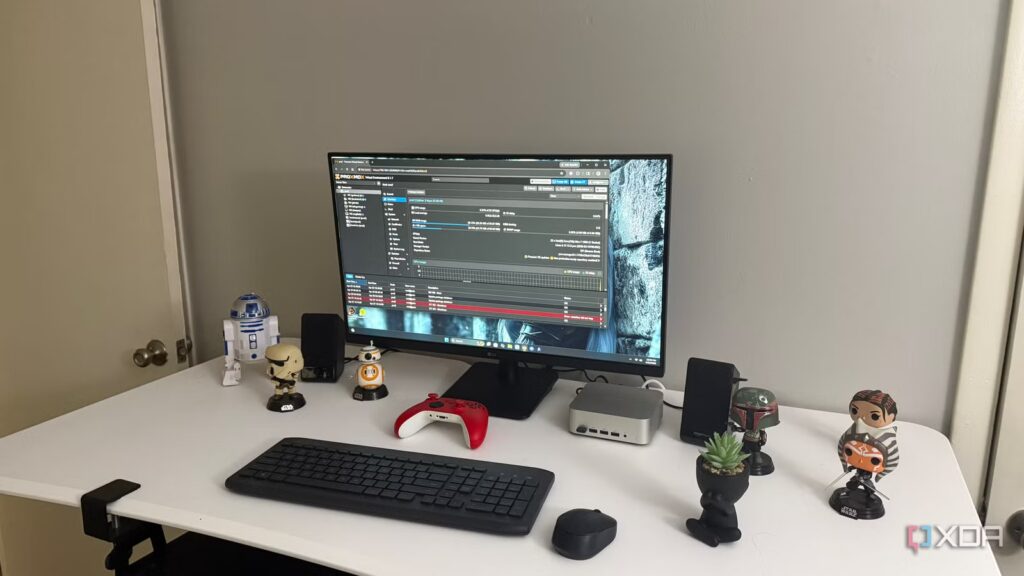
LXCs are one of the reasons Proxmox feels so good in a home lab. They are lightweight, fast, easy to clone, and generally much less expensive than creating an entire VM for each small service. When something only needs a basic Linux environment and a few predictable ports, an LXC might seem like the obvious answer. This convenience is exactly what makes it so tempting to use them for everything.
Some services run in LXCs until they need deeper hardware access, a cleaner network, less fragile storage, or less permissions gymnastics.
I learned the hard way that “can run” and “should run” are not the same thing. Some services run in LXCs until they need deeper hardware access, a cleaner network, less fragile storage, or less permissions gymnastics. At this point, the time saved initially is paid back with interest. These are the services I prefer to install in VMs now, even when an LXC looks cleaner on paper.
I Turned My Vanilla Debian System Into An Awesome Home Server With These 5 Packages
You don’t need a dedicated server operating system to create your first home lab
Docker hosts larger application stacks
Nested containers create problems you don’t need
Docking inside an LXC can work, and that’s part of what makes it so tempting. You get a lightweight Proxmox container, and then you get Docker containers inside that container, and the whole thing seems efficient at first. The problem is that you are stacking one container model on top of another. This adds extra places for permissions, cgroups, storage drivers, and networking, which gets nasty.
Privileged LXCs can make it easier to run certain services by alleviating some of the UID mapping and device access issues that come with unprivileged containers. This convenience comes at a cost, however, because a privileged container has a much closer trust relationship with the host. Unprivileged LXCs are more secure by default, but they can also make configuring link mounts, file ownership, and hardware access more annoying. If a service only works properly after weakening the container boundaries, this is usually a sign that it belongs to a VM.
For a small test stack, I don’t mind this kind of setup. For anything I plan to keep, maintain, and restore later, I prefer to use a VM. Docker expects to have a certain type of environment, and a VM gives it that without asking Proxmox’s LXC layer to bend around it. Backups, updates, and troubleshooting all seem more normal when Docker is installed on a full guest OS.
The problem is usually not performance. LXCs are very fast and Docker doesn’t magically need a giant VM to do useful work. The problem is knowing how much weirdness I’m willing to accept when something breaks. If the service is important enough to rebuild carefully, it’s important enough to give Docker a cleaner home.
Jellyfin with hardware transcoding enabled
Media servers become troublesome once GPUs enter

A media server looks like a perfect LXC candidate until transcoding comes into play. Jellyfin itself is not particularly heavy and direct playback does not require much from the host. The problem starts when you want hardware acceleration, device access, media mounts, and clean permissions to all work together. Suddenly, the simple container is no longer so simple.
Passing an iGPU or GPU device into an LXC is possible, but it often seems trickier than it should be. You need to think about device nodes, groups, drivers and whether the host and guest environment agree on what they touch. This may be a good idea for DIY, but media servers tend to become home infrastructure. Once other people expect streaming to work, fragility starts to feel rude.
A VM gives Jellyfin a cleaner border and a more traditional environment. It still requires configuration and hardware acceleration may still need some attention. The difference is that troubleshooting is less like spelunking through layers of containers. For a media server that manages a real library, I’d rather spend a little extra RAM than keep a smart configuration.
WireGuard for Remote Lab Access
VPN services require clean network behavior
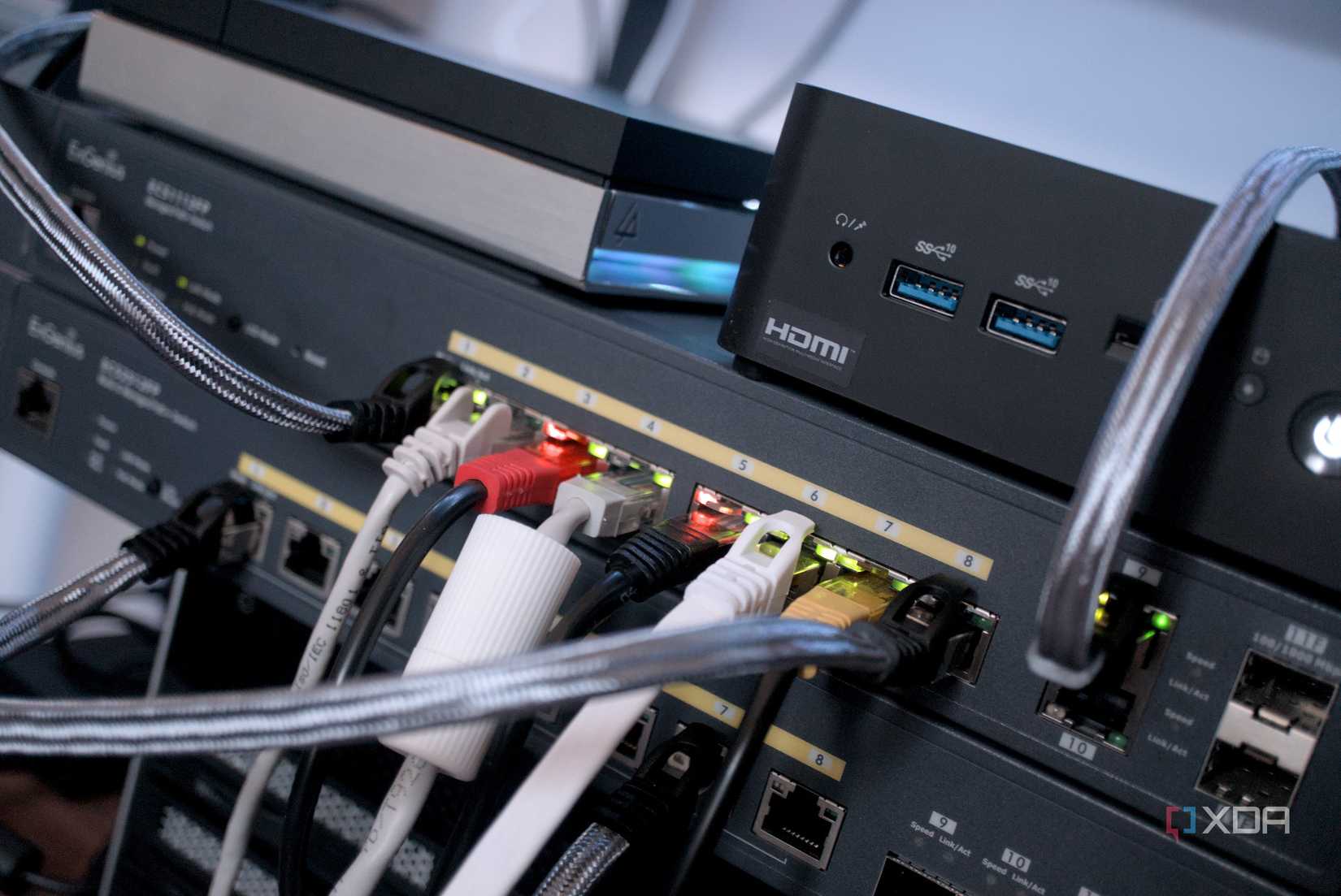
WireGuard is lightweight enough that running it in an LXC seems obvious. It barely needs any resources, it’s easy to deploy, and it can sit quietly in a corner to perform a single task. The problem is that this task involves remotely accessing the rest of the network. The surrounding environment therefore matters more than the service footprint.
Networking in LXCs can work just fine, but VPNs have a way of touching parts of the Linux network that you don’t want to hide behind assumptions. Routing, firewall rules, forwarding, interface behavior, and DNS are all part of the chain of trust. When this service is the gateway to the home laboratory, I want as few surprises as possible. A VM gives me a cleaner place to reason about what’s going on.
This is especially true if the VPN service becomes more than just an endpoint. Maybe it starts handling split tunneling, access to remote subnets, or access rules for different devices. At this point, saving a few hundred megabytes of memory is no longer the interesting part. I prefer to have the network service in its own complete system, with its own fault domain.
Samba and NFS file servers
Storage Services Punish Complicated Ownership Choices

Simple file sharing can work in an LXC, but I’m cautious with serious storage services. Both Samba and NFS care deeply about users, groups, ownership and permissions. Add binding mounts from the Proxmox host and the setup can quickly get murky. What looked like a clean container can turn into a quiet discussion about who owns what.
This is important because file servers tend to contain data that people are actually interested in. A broken dashboard is annoying, but interrupted access to media, backups, documents or project folders can ruin an evening. UID and GID mapping issues aren’t always obvious at first either. They may appear later when another client, service or backup process touches the same files.
With a VM, the file server looks more like a normal machine. Storage still needs to be planned properly, but the authorization model is easier to understand. I don’t need to remember which layer has which path. For file services, boredom is not a weakness.
Home Assistant with device relay
Smart home hubs don’t like smart containment tricks

Home Assistant can work in several ways, and some are more container-friendly than others. The problem starts when your setup depends on USB radios, Bluetooth, Zigbee, Z-Wave, or other hardware that requires consistent access. A basic dashboard is one thing. A smart home controller with real hanging devices is a whole different creature.
LXCs can pass through USB devices, but that doesn’t make them the best home for a smart home hub. Device paths can change, permissions can become difficult, and host-level changes can affect the container in ways that seem disconnected from the actual problem. When automations control lights, sensors, outlets and alerts, I don’t want the foundations to seem improvised. I want boring reliability with a locked front door.
A VM gives Home Assistant more space to behave like its own device. It also makes it easier to think about backups, restores and migrations when the system becomes central to daily life. This does not mean that every installation of Home Assistant must reside in a VM. This means that once hardware radios and major home automations are involved, I stop trying to be smart.
The boring response usually lasts longer
LXCs are always excellent for good jobs. I would happily use them for small dashboards, DNS tools, lightweight web services, monitoring applications, and other tidy utilities. They are efficient and pleasant when the service does not need to jump through too many levels. The mistake is to treat them as the default home for simply because they are neat.
