
Before I found NotebookLM Tools, I added sources the hard way. I would copy the URL and add it to a notepad or search for sources inside. But if I found a source for a different topic, then I would have to change notebooks again. When I saw what NotebookLM Tools could do, I felt immediate relief. It just made sense, and I couldn’t believe I’d been doing it this way for so long.
I can drop a source into an existing notebook without leaving the page
A few clicks and it’s already in the right notebook
I came across a site that I wanted to add as a source for my Network Quiet Hours notebook. I clicked on the NotebookLM Tools Chrome extension, then in the pop-up window:
- I clicked “Add to existing notebook”
- Choose the right one
- Click “Add to Existing Notebook” again to confirm
I could tell the page was being added because there was a progress bar, and once it was done I received a confirmation message. I have to admit that the first time I tried it, I still opened NotebookLM to make sure the source was there. It was! After that, I didn’t feel the need to do it again. That’s it. I didn’t have to switch tabs like before or waste time searching for the notebook.
I don’t need to force every source into an old notebook
I can create a new one directly from the extension
While researching sources for my Network Quiet Hours notebook, I came across some information on the anatomy of a router. I thought this would be a good topic to refresh, so I decided to save it. But then I realized I didn’t have a notebook on this topic, so I used NotebookLM Tools to create one for me.
The process was not complicated since it was enough to click on the extension -> choose Create new notebookand it was created automatically. I was expecting a little window to appear so I could name my notebook, but that never happened. I opened NotebookLM to see what it would name my laptop, and to my surprise, the name wasn’t bad at all. This was the anatomy and functions of a wireless router. The source was already there too, so I didn’t have to create the notebook first and then add the page separately.
I made these NotebookLM mistakes so you don’t have to
Save yourself the headaches of NotebookLM
I can use NotebookLM Tools without covering the page

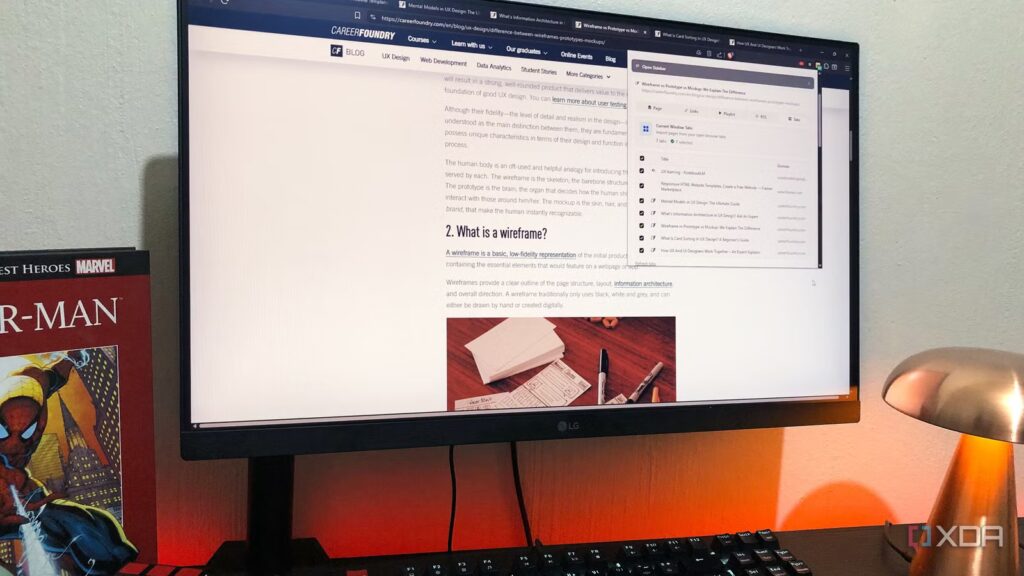
It didn’t take much to notice this feature, since there was a big gray button labeled “Open in Sidebar” staring back at me. I clicked on it and the popup automatically moved to the sidebar. Even after opening another tab, it was still there on the side.
When I saw it this way, I thought it would be useful in source collection mode, since the options I need are already visible. I would use the pop-up when I’m doing something non-work related and accidentally come across a source I want to save. After seeing how it works, I know that when I’m actively searching for sources, I’ll keep them in the sidebar and use the extension icon for quick saves when I don’t.
I always open NotebookLM when I need to double-check something important
The confirmation message does not show me the complete notebook

I’m not going to pretend that this Chrome extension isn’t useful. It’s a real time saver, but nothing beats opening NotebookLM and seeing the source inside the notebook myself. The Chrome extension sends me a confirmation message that the source has been added, but I won’t have that peace of mind until I see it in NotebookLM. This is what I did the first few times a source was added, and I know I will do it every time I work on something important.
The slow part is already over

The extra check doesn’t bother me too much because I know I’ll open the notebook sooner or later. Once opened, it only takes me a few seconds to see if the sources have been added. I like to compare it to sending an email. I don’t open the Sent folder every time. I hope this passed, but only check when it’s really important.
If I save a source, the confirmation message is probably enough. If I save something that I really need for a post or project, I can open NotebookLM and double-check it. Regardless, the extension saves me time that I would have spent opening NotebookLM, finding the notebook, and adding the source.
NotebookLM Tools makes backing up sources less annoying
The Chrome extension won’t replace opening NotebookLM for me, but it will make adding sources easier. This allows me to do important things, like add sources to existing notebooks or create new ones. I can also add NotebookLM Tools to the sidebar to make the process easier. With all that to use, this is an extension I don’t plan on uninstalling anytime soon.
