
One of the most inevitable realities of owning a PC is running into a dreaded boot loop or persistent POST error. These system-stopping roadblocks can hit you at any time of the week for several different reasons. You may encounter them right after assembling a brand new rig, following a botched software update, or completely out of the blue when your monitor simply refuses to display video output.
One frustrating aspect of the usability of this problem, which even experienced hardware builders are sick of, is how diagnosing the actual root problem can degenerate into an exhausting wild goose chase. You may have to question every component, retrace steps, and swap parts only for all that effort to be in vain. It’s even more infuriating if you don’t properly use your motherboard’s debug LEDs to point you in the right direction. Here’s why it’s worth understanding the POST error detection system built into your motherboard.
What are debug LEDs?
And how do they help?
Debug LEDs are a group of small diagnostic LEDs located on your motherboard, but their location varies depending on your motherboard manufacturer. It’s not entirely unusual to see them light up when you start up or restart your PC.
During the Power-on self-test (POST) During this phase, your motherboard checks components such as CPU, DRAM, VGA (relating to GPU and video output), and BOOT in sequence. If the corresponding hardware fails, is installed incorrectly, or is not detected, the boot sequence is interrupted. The specific LED associated with the component lights up after determining the problematic component.
This visual feedback is helpful in taking the “guesswork” out of diagnosing a problem. Instead of wondering if your DIMMs are seated incorrectly or if your GPU is broken, the LEDs act as signposts pointing directly to the culprit, saving you hours of unnecessary parts replacement.
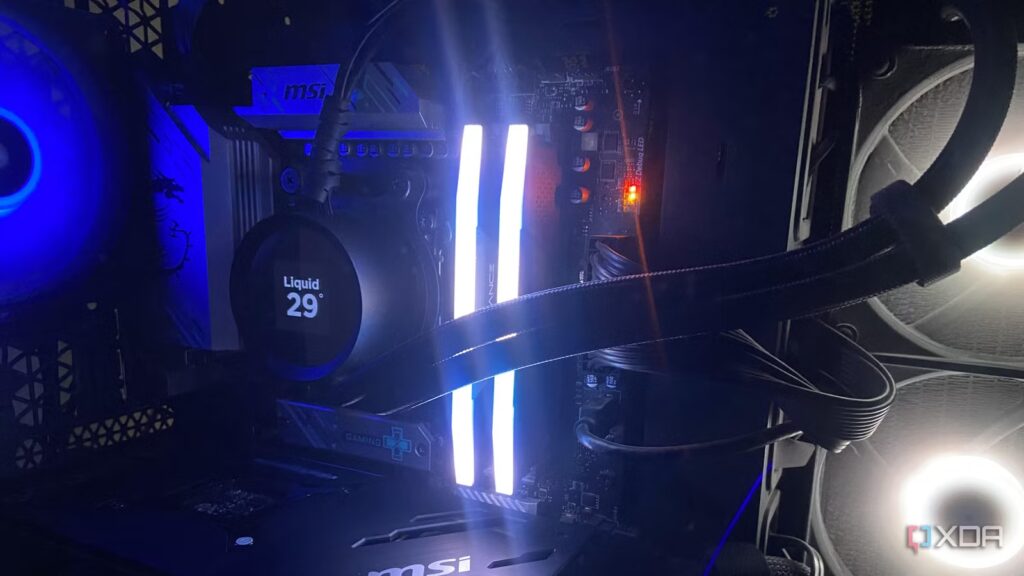
Although the concept of diagnostics is essentially universal, various motherboard vendors implement their own specific versions and naming conventions. For example, on my MSI B650M motherboard, the feature is known as “EZ Debug LED“, while other brands such as Gigabyte and ASUS may use slightly different visual layouts or combine them with numeric alphanumeric reading codes.

Showing my motherboard POST code is one of the best features I never knew I needed
Displaying the embedded POST code spoiled me
What do the lights mean?
Understanding the different debug LED signals
If you’ve pressed the power button, given the system has enough time to POST, and you’re still looking at a black screen accompanied by a stubborn debug light, it’s probably time to start diagnosing. Although each version may be slightly different in placement and color, the four standard debug LEDs correspond to the same core subsystems on most motherboards.
On my MSI B650M motherboard, processor indicator is at the very top. If this indicator stays on, it means that the motherboard cannot communicate with the processor or that an error has been detected. This can be harmless, such as an incorrectly installed processor or if the BIOS is not updated to support the processor; or it could indicate something sinister, like bent pins. Some other common problems include user errors, such as forgetting to plug in the CPU power cable.
DRAM lights are located directly below, and the blinking yellow light here indicates a memory problem. Most often it turns on at startup if a RAM stick is not pushed all the way into the DIMM slot and clicked in properly. If reinstalling doesn’t fix the problem, I’ve found that it’s usually helpful to try a single stick in the primary slot or clear the CMOS.
VGA light indicates a display problem, and you’ll probably notice something is wrong by a black screen or dialog box saying “No Video” a few minutes before the indicator tells you. When the VGA lights come on, I look at the GPU to see if it’s seated correctly in the PCIe slot and check the power cables.
The BOOT error usually means that the hardware is working fine, but the system could not find a valid operating system to load. The only time this indicator came on was when my SSD was corrupted, but that’s not the case. always I mean that. This could also mean that the boot drive is not properly connected to the SATA connectors or the SATA data cable, or if you are using an NVMe it may mean that it is not properly seated in the M.2 connector.
You can also display the POST code
These provide a little more context than the debug LEDs

Standard debug LEDs are useful for identifying the problem component, but they leave you to determine the exact nature of the failure. For added context, POST code displays are invaluable. Typically found on high-end motherboards from the ASUS ROG/Strix, MSI MEG and MPG, and Gigabyte AORUS series, these displays provide two- or four-digit hexadecimal readings and give you specific details about the error in question.
While extremely useful, these displays have all but disappeared from the budget segment and are almost entirely exclusive to high-end motherboards. That doesn’t mean you’re completely out of luck if your card is missing one. You can easily get an LPC debug motherboard that often costs as little as $10 to get the functionality on your rig.
It’s always worth reading the motherboard manual
Over seven years of building PCs for myself and friends and family, I’ve seen my fair share of boot loops and POST errors. Certainly, going through the usual motions of reinstalling components or clearing the CMOS helps, but the most reliable and effective solution is to understand what your PC is communicating to you. It took me an embarrassingly long time to realize this, but reading the motherboard manual and decoding these indicators significantly speeded up my troubleshooting process. At least now I can keep my wits about me every time the infamous “no video” error occurs.
