
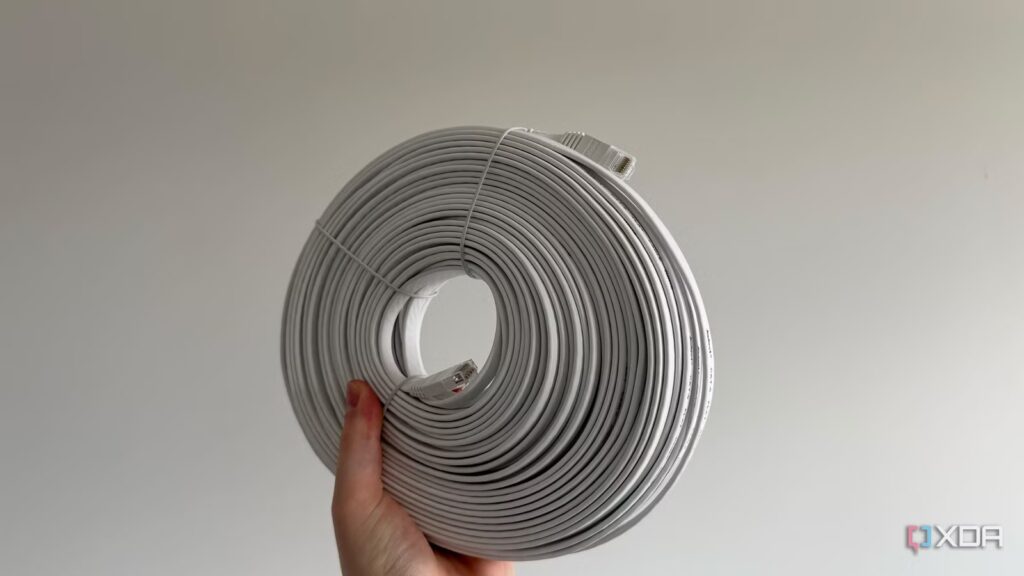
My existing home network has been something of a patchwork over the past six years. I had to replace the ethernet cables when we moved here because the pre-installed cables were Cat5. I’ve tried a Wi-Fi extender with mixed results, tried (and failed) to route Ethernet to all parts of the house, and only recently upgraded to a Wi-Fi 6 router. For several reasons, I haven’t been able to configure my home network the way I wanted. That’s why I already have a very clear mental checklist of things I’ll do the next time we move to a new place. From cabling and router to VLANs and custom DNS, I will scale and future-proof the network exactly the way I want it. I will ensure that the network is more than capable of serving the entire house without resorting to makeshift solutions later.
4 Network Hurdles I’ve Faced Over the Years and How I Solved Each One
Sometimes small fixes can fix huge connectivity issues
Install Cat 6a cables from the start
Instead of incremental upgrades
I mentioned that I had to replace the pre-installed Cat5 cables in our apartment when we moved in. At first I was happy to discover pre-existing wiring in the house, but the outdated standard meant we were limited to a 100 Mbps wired connection. These cables had to go, so I bought a spool of Cat 6 cable (although it’s strangely written Cat 6e+) to support the 200 Mbps connection we had just signed up for. Cat 6 cable has worked great for the past six years, but in our next apartment I’m going to skip it and go straight to Cat 6a. Cat 6a has some key advantages over Cat 6, without being really too expensive or excessive like Cat 7, which is not a TIA recognized Ethernet standard.
Regardless, Cat 6a operates with double the bandwidth of Cat 6 (500 MHz versus 250 MHz), supporting 10 Gbps connections up to 100 meters. It also features additional twists to further minimize crosstalk from other cables, ensuring a more stable connection. Certainly, Cat 6 will be sufficient for my use in the near future, but why not use a better standard immediately, especially when it doesn’t cost much more? Instead of buying it cheap and replacing it later, it’s better to eliminate the extra effort from the start.

I wired my house with Cat6 and regret not spending the extra $50
Do the wiring correctly the first time.
Wire each room instead of just where my PC is
It will make sense later
When it came to deciding how much effort we were willing to put into running Cat 6 cables through the walls, I quickly concluded that the PC room was the only one that really needed it. All other devices, including our smart TV and my partner’s iMac, work great over Wi-Fi, so I happily avoided wiring every room. Next time this question comes up, I’ll route the cables to each of the rooms, whether we need them immediately or not. Having a more stable and consistent wired connection, ready to run throughout the house, will ultimately benefit me in more ways than one.
We can finally use the Ethernet port on our smart TV, ensuring that streaming quality doesn’t depend on the vagaries of the Wi-Fi connection. If our next apartment is larger than the router can handle on its own, then we’ll need wired access points (APs) in one or more rooms. If I eventually build a NAS, it will need to be connected directly to the router. Finally, security cameras and smart home hubs will also work more reliably over Ethernet. I realize that running cables through every part of the house will cost me time and money, but it’s a one-time problem that will pay dividends forever (or until we move again).

I installed a wired connection in every room of my house, and it was totally worth it
After years of being Wi-Fi, I have now seen the light
Get a replacement Wi-Fi 6E router
Learn from my mistakes
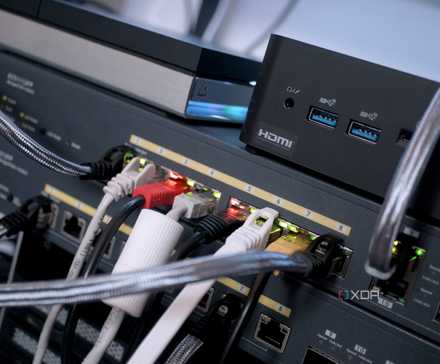
After using a Wi-Fi 5 router provided by my ISP for years, I don’t intend to be at its mercy for another router upgrade. As we move to a new apartment, I’m purchasing a Wi-Fi 6E router to replace any piece of junk that the ISP deems sufficient. Most routers provided by ISPs are either plagued by substandard hardware or too restricted to be of any use. They can cripple your network by overheating as your network starts to accommodate more devices, or prevent you from accessing basic settings like VLANs, custom DNS, and even QoS. Your ISP even has administrator access to your router, leaving a gaping hole in your network security. Additionally, many ISPs never update router firmware or do so at a snail’s pace for many years.
With an aftermarket Wi-Fi 6E router, my network will be completely unlocked, not only in performance but also in control. A Wi-Fi 7 router will be slightly better, but frankly overkill and much more expensive. With my own router, I will be able to upgrade to custom DNS to remove ISP restrictions and make granular changes to the router settings. I can keep the router updated to patch security vulnerabilities and avoid traffic tracking and the ads that come with it. Using the ISP router will always be a poor experience if you like to control your home network.
I regret staying with my ISP router for so long – it’s much better to make my own
Open yourself to networking nirvana.
Configure VLANs for smart devices
VLANs are for everyone
I don’t own a lot of smart devices at the moment, but that might change in a few years. A new apartment might lead us to purchase a few smart plugs and bulbs, outdoor cameras, speakers, curtains, motion sensors and more. Having all this smart home traffic crossing the main network may not seem like a big deal, but it can slow down everything else, especially if the smart devices support older Wi-Fi 4 or Wi-Fi 5 technologies. When these devices broadcast information for discovery, coordination, updates, etc., they can congest the network and force devices to queue more quickly. This behavior manifests itself in the form of slow performance for your PC, NAS, Smart TV, smartphones and other high-speed hardware. Moving all smart devices to a separate VLAN keeps all slow traffic away from the main network, allowing your main devices to take advantage of the full power of your connection.
VLANs are not only used to improve performance by creating separate logical networks; They can also be used to prevent unauthorized access from compromising the entire network, provide isolated Wi-Fi access to your guests, limit Internet access for certain devices, and block certain devices from connecting to others inside the home.

VLANs aren’t just for security; they made my smart home more reliable
It is now more than a safe house.
Switch to custom DNS (finally)
It’s something most people never think about
Custom DNS is not as advanced as a self-hosted DNS server, but it still improves connection responsiveness, privacy, and reliability. DNS is how you access the Internet using domain names, that is, user-friendly names instead of memorizing IP addresses. DNS, or Domain Name System, resolves domain names you enter into IP addresses. It is a cog in the entire Internet infrastructure and is largely ignored by the general population. However, your ISP’s default DNS has some compromises. First, your internet traffic is exposed to the ISP, undermining the privacy you think you have on your own network. Second, your ISP may limit which parts of the Internet you can and cannot access. Third, it may also serve targeted advertisements based on your browsing behavior.
Switching to a custom DNS can resolve each of these issues. I’ve rarely used one myself, but I plan to do so the next time I set up my home network. For now, I’m just using 8.8.8.8 (Google) and 1.1.1.1 (Cloudflare) in place of ISP DNS to speed up access times, but I plan to configure OpenDNS, NextDNS, or PowerDNS soon. Google and Cloudflare are not completely secure and do not offer customization options for content filtering, hence the need for more advanced options.

I used Unbound to create my own DNS server and will never go back to Google or Cloudflare
I created my own DNS server using Unbound, and it worked without a problem.
It’s never too late to make better networking choices
I haven’t spent much time optimizing the performance, security, or features of my home network, but I’m ready to change all that when I set it up from scratch during our next move. I’m not going to spend less on Ethernet cables like I did before, and I certainly won’t use the ISP-provided router like I did for years in my existing setup. I will also upgrade to custom DNS, configure VLANs if necessary, and run Ethernet in each room. Investing time and effort into improving my home network will pay off in the long run.
