How to install iOS 27 Public Beta 5 on your iPhone
Apple made the fifth public beta of iOS 27 available this week, bringing a more stable version of the software to a wider audience after extensive testing by developers. Keep reading to learn how to prepare your device for beta software and how to install it.
Signing up to get the public beta of iOS 27 or iPadOS 27 is simple once you know how to do it: it can be done by enrolling an iPhone or iPad in Apple’s free Apple Beta software program. The steps to install the software on your device are provided towards the end of this article, but before you get started, here are a few things to consider.
Is my iPhone compatible with iOS 27?
iOS 27 is supported on iPhone 11 and all the same iPhone models as iOS 26. They include the following:
- iPhone 17e
- iPhone17
- iPhone 17 Pro and Pro Max
- iPhoneAir
- iPhone 16e
- iPhone16
- iPhone 16 Plus
- iPhone 16 Pro
- iPhone 16 Pro Max
- iPhone15
- iPhone 15 Plus
- iPhone 15 Pro
- iPhone 15 Pro Max
- iPhone14
- iPhone 14 Plus
- iPhone 14 Pro
- iPhone 14 Pro Max
- iPhone13
- iPhone 13 mini
- iPhone 13 Pro
- iPhone 13 Pro Max
- iPhone12
- iPhone 12 mini
- iPhone 12 Pro
- iPhone 12 Pro Max
- iPhone 11 Pro
- iPhone 11 Pro Max
- iPhone11
- iPhone SE (3rd generation)
Is my iPad compatible with iOS 27?
iPadOS 27 drops support for more iPad models than last year’s iPadOS 26, with older models of the iPad Pro, iPad Air, iPad and iPad mini all losing compatibility. iPadOS 27 is supported on the following iPad models:
- iPad Pro 13-inch (M4)
- iPad Pro 12.9-inch (6th generation)
- iPad Pro 12.9-inch (5th generation)
- iPad Pro 12.9-inch (4th generation)
- iPad Pro 11-inch (M4)
- iPad Pro 11-inch (4th generation)
- iPad Pro 11-inch (3rd generation)
- iPad Pro 11-inch (2nd generation)
- iPad Air (M3)
- iPad Air (M2)
- iPad Air (5th generation)
- iPad Air (4th generation)
- iPad (A16)
- iPad (10th generation)
- iPad (9th generation)
- iPad mini (A17 Pro)
- iPad mini (6th generation)
Note that this compatibility list does not mean that all iOS 27/iPadOS 27 features will work with the models above. Several features in the update are exclusive to iPhone 15 Pro and newer models because they rely on Apple Intelligence.
For example, iOS 27’s more intelligent and personal version of Siri is available on iPhone 15 Pro and later, while two specific features related to it are exclusive to iPhone 17 Pro, iPhone 17 Pro Max, and iPhone Air.
Should I install the iOS 27 public beta?
Excellent question! Before downloading the update, it’s worth noting that Apple doesn’t recommend installing iOS 27 beta updates on your primary iPhone/iPad, so if you have a secondary device, use that. This is beta software, which means that there are often bugs and issues that may prevent the software from working properly or cause other problems. Apple still has fixes to make before the final version in September.
First make an archived backup of your device
Before installing the beta version, make sure to back up your iOS device before installing the software using the following method, otherwise you will not be able to revert to iOS 26 if something goes wrong.
- Plug your iPhone into your Mac using the provided cable.
- Allow the accessory to connect by clicking Allow in the dialog prompt.
- Open a Researcher by clicking the Finder icon in the Dock.
- Click your iOS device name in the sidebar.

- If this is your first time connecting your device to your Mac, click Trust in the Finder window.
- Faucet Trust on your device when prompted, then enter your password to confirm.
- On the General tab, click the circle next to where it says Back up all your iPad data to this Mac.
- If you want to encrypt the backup, check the box next to Encrypt local backupthen enter a password to protect your data.
- If you do not want to create an encrypted backup or if you have already configured encrypted backups, click Back up now.
/article-new/2023/06/archived-backup2.jpg)
/article-new/2023/06/archived-backup1.jpg)
/article-new/2023/06/archived-backup3.jpg)
Once the backup is complete, you can find the date and time of the last backup in the General tab, just above the Manage Backups button. Remember that this backup will not be overwritten when you manually or automatically backup your iPhone in the future, so you can restore it at any time using the Restore backup… option in the same Finder screen.
How to download the iOS 27 public beta
Downloading and installing the iOS 27 public beta is very simple. Just follow these steps:
- Go to Apple’s beta software program website and sign up using your Apple account credentials.
- Now go to Settings ➝ General ➝ Software Update on your iPhone.
- Faucet Beta updates. If you don’t see the option, try disabling Download iOS Updates (Automatic updates ➝ Download iOS updates), then tap Back and it should appear.
- Select iOS 27 public beta in the list, then tap Back.
- Wait for the software update screen to check Apple servers. When the iOS 27 public beta appears, tap Download and installthen follow the instructions and wait for the installation to complete.
/article-new/2026/07/apple-beta-software-27.jpg)
iOS 27 Features
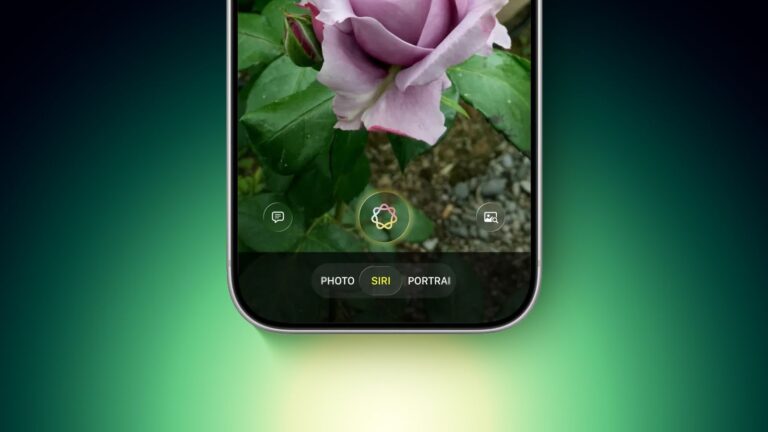
The main change in iOS 27 is a smarter, more personal version of Siri, but the update also brings a broader set of improvements across Apple’s core apps and services. A new Siri mode in the Camera app works with visual intelligence, which lets you point your iPhone at real-world items like receipts and perform useful actions directly from what’s on the screen.
Apple Maps gets an improved AI-powered hover experience, with sharper, more realistic aerial imagery for select cities. In the United States, a new Local Listings feature features collections of relevant places, including trending restaurants and family destinations.
Find My adds more flexible location sharing controls. You can now share your location for a custom duration, set an exact sharing expiration time, or pause sharing with specific people until the end of the day. Reminders and Calendar now also support natural language input, and Apple Intelligence will automatically fill in details like date, time, and location.
Wallet, Apple Cash and Apple Pay are also getting major upgrades. iOS 27 adds Apple Intelligence-powered bill splitting with Apple Cash, personalized Wallet passes created from physical cards, richer hotel key experiences, and a redesigned Apple Pay payment flow with easier card switching and more payment details. Tap to Pay on iPhone also benefits from Tap to Share, allowing customers to securely share contact, shipping and loyalty information with participating merchants.
Apple’s media and cloud apps are also receiving updates. Apple Podcasts adds search within individual shows, iCloud Shared Albums supports full-resolution cross-platform sharing and more file types, and Apple Music improves AutoMix while expanding lyric translation to more language combinations.
For the full list of iOS 27 features, see Apple’s press release.