
GIMP and I have a strange history. I keep it installed, open it every now and then, and then remember why I stopped trying to use it as my primary editor. This is mainly because the interface is…a lot. Not only is there a lot going on, but the panels and features seem very disconnected, at least when you come from editors that use traditional layouts like Photoshop, Photopea, Affinity and the like. From what I understand, GIMP has a loyal user base, so this whole thing might seem silly if you’re already used to navigating GIMP. Either way, it’s still free and powerful, so I keep it in my arsenal.
GIMP 3.2 dropped back in March and the feature list was actually interesting enough that I wanted to take a good look at it. Some of them really impressed me. Whether that’s enough to get me out regularly – I’m still not sure. But it’s worth watching.
GIMP 3.2 adds a new feature I’ve wanted for years to the image editor
Resizing photos just got a lot easier.
Linked layers are almost like smart objects
It’s a strange workflow, but it works well
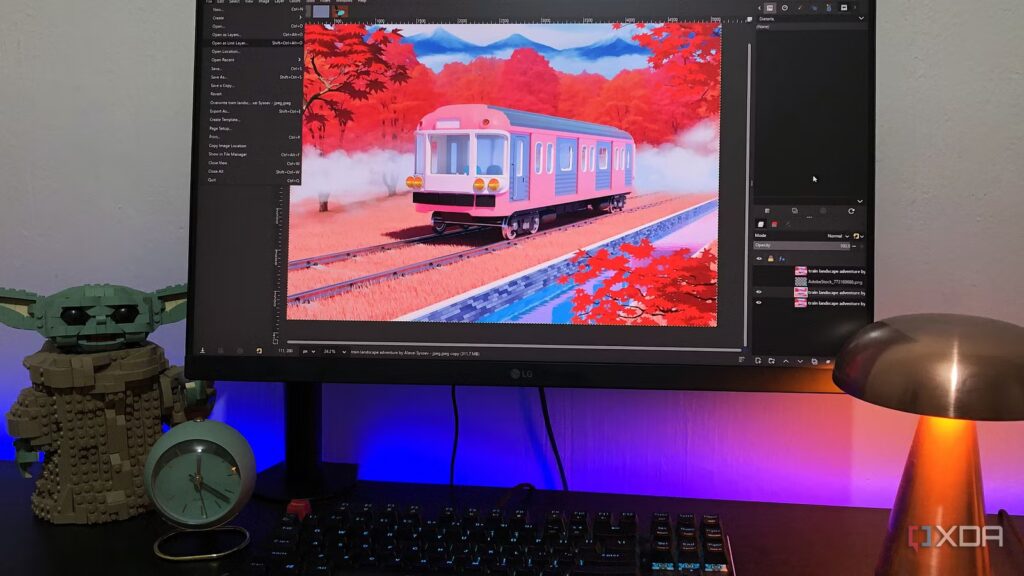
Linked layers are essentially an active pointer to an external file located on your disk. Instead of importing an image and immediately flattening it into pixels without a connection to the source, a link layer keeps that connection open – so if you edit the source file in another application and save it, GIMP automatically picks up the edit. You access it via File -> Open as link layerIt appears in the layers panel with a small chain icon, and you can resize and transform it freely without touching the original. If you want to swap the source file entirely, double-click the layer and edit it in the attributes dialog.
The comparison people keep making is to Photoshop’s Smart Objects, which are pretty accurate – same idea, but implemented differently. You cannot paint directly on a link layer without rasterizing first, which breaks the link. If the source file is moved or renamed, same problem. But the goal is to keep your workflow non-destructive, so you can scale and transform the linked layer without any loss of quality. My experience with this was more of an “oh okay, that’s nice” moment. I dropped a PNG as a link layer onto a photo background, opened the source in another editor, changed the color, saved – and it just updated in GIMP. While it’s primarily a non-destructive editing feature, the auto-update is the part that really sells it for me.
GIMP finally has real vector layers
It only took 20 years
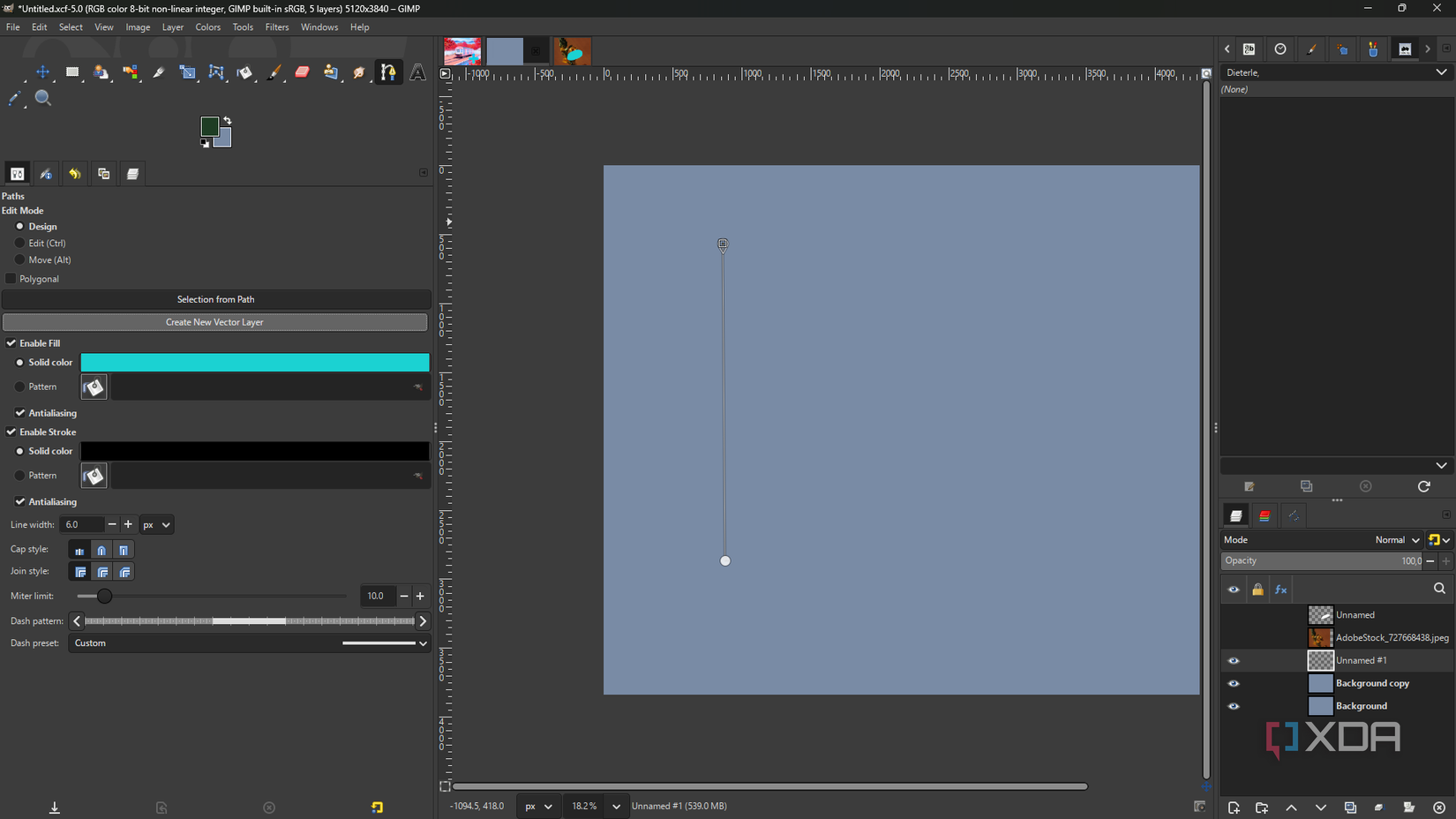
Before version 3.2, GIMP’s pathfinder was still just a means to an end. You drew a path, used it to make a selection or stamped a stroke on pixels, and that was it – the path and the result immediately had nothing to do with each other. Everything ended up being raster. Vector layers change that. Now you draw a path, press “Create a new vector layer” in the tool options, and the shape becomes its own persistent layer in the stack with editable fill, stroke, color, and line width – all adjustable at any time. Move anchor points and live layer updates, or scale them without any loss of quality. The code for this was actually started as a Google Summer of Code project in 2006, went through several developers over the years, and finally landed in the release 3.2 So about 20 years, but he’s here.
It took a minute to locate the button that wasn’t in any menu – it’s only in the tool’s options panel, which isn’t where you would instinctively look. This is a classic GIMP, which makes things difficult to find. Once I figured it out, the actual workflow is pretty simple. The moment that sold me was closing the project, reopening it, and having the vector shape still fully editable. This seems obvious, but for GIMP it’s truly new. For simple shape work, vector is now at least a real option without the application jump.
The text editor received a small, but long overdue, update
Nothing flashy, but small victories add up

The text editor updates are more administrative than revolutionary, but the main one was seriously overdue. The toolbar on the canvas has been around since version 2.8, but it was fixed – it would just park on top of your text and you couldn’t move it, which quickly got annoying when it was right on top of what you were working on. Now you can drag it anywhere. They also added inline formatting shortcuts so Ctrl+B, Ctrl+I, Ctrl+U work directly on the canvas now instead of going through the options panel, and Shift+Ctrl+V Removes formatting when pasting from a browser.
The live color preview is supposed to update in real time when selecting the text color, although this one didn’t work for me – it’s unclear if this is a bug or a version issue. They’re small things overall, but the draggable toolbar alone makes text work noticeably less annoying.

I switched from Adobe to Affinity and found 5 things it actually does better
Affinity is not catching up in these areas – it is ahead
Still not my main editor, but closer than before
There are a handful of other updates worth a quick mention. Revert Rasterize is genuinely useful for anyone who has ever accidentally painted over a text layer and had to undo fifteen steps to fix it – you rasterize, make your destructive edit, change your mind, and go back without losing anything. It’s not something I’ll use constantly, but it’s a welcome safety net. The MyPaint brush tool has also been updated to API v2 with 20 new brushes and a Gain slider that simulates pen pressure for mouse users, which is a real treat for anyone doing expressive work without a tablet. Neither are the reason I opened 3.2, but they are solid additions.
So where does this leave me with GIMP? Honestly, I’m still not sure. The interface hasn’t changed – it’s still a lot, and I still prefer to use Photopea or Affinity for most things. But link layers and vector layers are features I’m actually going to use, and 3.2 is probably the most exciting GIMP release in years. It is worth installing. It is worth opening more than once. I really don’t know yet if this will turn into a new commitment.
