
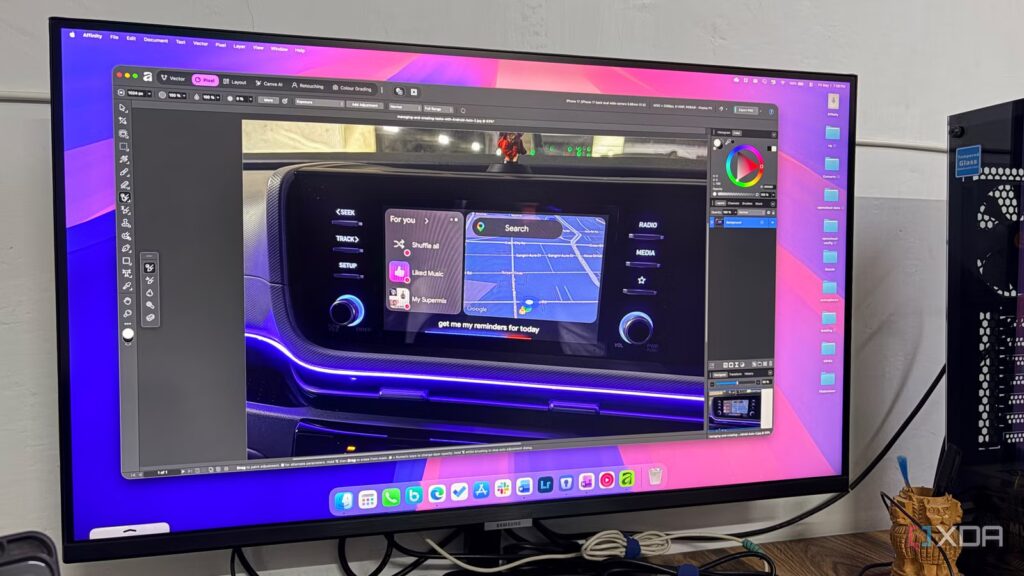
My quest for a true Photoshop alternative has always seemed like a compromise between GIMP’s heavy and steep learning curve, Krita’s niche painting-focused toolkit, and a browser-based, ad-filled Photopea.
But the whole scenario changed when Affinity Photo 2 moved to a completely free template following its acquisition by Canva. It’s no longer just an economical option; it’s a professional-grade powerhouse that mirrors Adobe’s workflow without a monthly subscription.
9 Reasons Why Affinity Creative Suite Can Replace Your Adobe Subscription
Switch from Adobe to Affinity. You will thank your past.
The Canva effect
The business perspective

I’ve been following the Serif versus Adobe saga for years, and for a long time the pitch was simple: pay once, own it forever. It was a great compromise, but it still required an initial investment.
However, since Canva acquired the suite, the company has made a welcome change. The entire Affinity suite is now free to download and use. I’m not talking about a lite version or a trial that expires after thirty days.
You can have access to RAW editing, infinite layers, premium export options, and PSD compatibility for $0. If you’re like me and have spent years looking for a Photoshop replacement that doesn’t feel like a compromise, your search ends here.
You only need a standard Canva account to sign in and get started. The only thing you currently pay for is Canva AI. If you want generative fill or an AI-powered extension directly in your canvas, this requires a Canva Pro subscription.
For my daily workflow – retouching, color grading and large jobs – I don’t need AI. This means I get a world-class professional editor for free, with the ability to add AI features only if I need them.
We have the impression that Canva is playing the long-term game: providing us with the best tools in the world for free to integrate us into their ecosystem and let the product speak for itself.
Performance and modern architecture
Hardware-Driven Design

Although GIMP is open source and powerful, it often feels like it’s running on a decade-old engine. When I’m faced with deadlines, I don’t have time to waste on UI lag or brush stutter. This is exactly where Affinity Photo 2 wins. It’s designed for the hardware I’m currently using in 2026.
Whether I’m working on my Windows desktop or pushing pixels on my MacBook Pro, the difference is night and day. On the MacBook, it’s fully optimized for M-series chips, meaning I can pan and zoom a 100MB RAW file at 60 frames per second without hearing the fans kicking in.
Even on the new Snapdragon-based Windows laptops I’ve reviewed recently, ARM optimization is tight.
In older editors, applying a Gaussian blur or complex lighting effect usually means “applying it” and waiting for a progress bar. In Affinity, I can stack five of them and see the results instantly when I move a slider.
Memory management is also more efficient than what I’m used to seeing in Chromium-based web editors or legacy legacy software. It’s crisp, modern, and finally works well with the high-end hardware I’ve invested in.
Full of features
The essentials for professionals
Affinity supports non-destructive RAW editing. I can change exposure, highlights and shadows and even go back and change these raw settings at any point in my workflow without losing my progress.
Then there are the dynamic filter layers. It’s the functionality that kills. In Affinity, I can stack a live Gaussian blur on top of a high pass filter, hide them, and change the settings two hours later. It’s the same level of freedom I get with Photoshop’s Smart Filters, but it feels even more integrated and quicker to switch.
Affinity’s native PSD is also robust. This doesn’t just flatten your image like some editors; it preserves your layer groups, masks, and even many adjustment layers. This makes the transition smooth.
Plus, it natively handles modern formats like HEIF, WebP, and OpenEXR, which is essential when I’m preparing images for the web.
Affinity also offers a range of color grading and retouching tools. Between 3D LUT Creator support and the dedicated Lab color space, I have more control over color than ever before in GIMP.
I can target specific hues with incredible precision, which is essential when trying to make a smartphone screen appear in a review photo.
Let’s quickly talk about the user interface. Unlike many Photoshop clones, Affinity looks light and fresh with modern icons. The user interface is also fully customizable. I can fine-tune the interface brightness and text contrast until it’s exactly where I need it for a long studio session.

Pixelmator Pro vs Photoshop: Which is the Best Image Editing Tool?
Pixelmator Pro is very promising, but Photoshop is still on top
The search is over
Whether you’re handling complex RAW development or high-end editing, Affinity Photo 2 delivers a refined user interface and hardware-accelerated performance that finally takes your mind off Photoshop.
By moving Affinity Photo 2 to a free forever model, Canvas didn’t just challenge Adobe: they redefined expectations for the entire creative industry.
While GIMP and Krita will always hold a crucial place in the open source community, Affinity Photo 2 provides the missing link: a polished, high-performance setup that handles all the photo editing tricks without breaking a sweat.
