CarPlay in iOS 26 adds five new ways to customize your setup
CarPlay got a lot of new features in iOS 26, but Apple also now lets you customize your car’s setup more than ever with new settings. Here are five ways iOS 26 lets you customize CarPlay.
#1: Smart Display Zoom
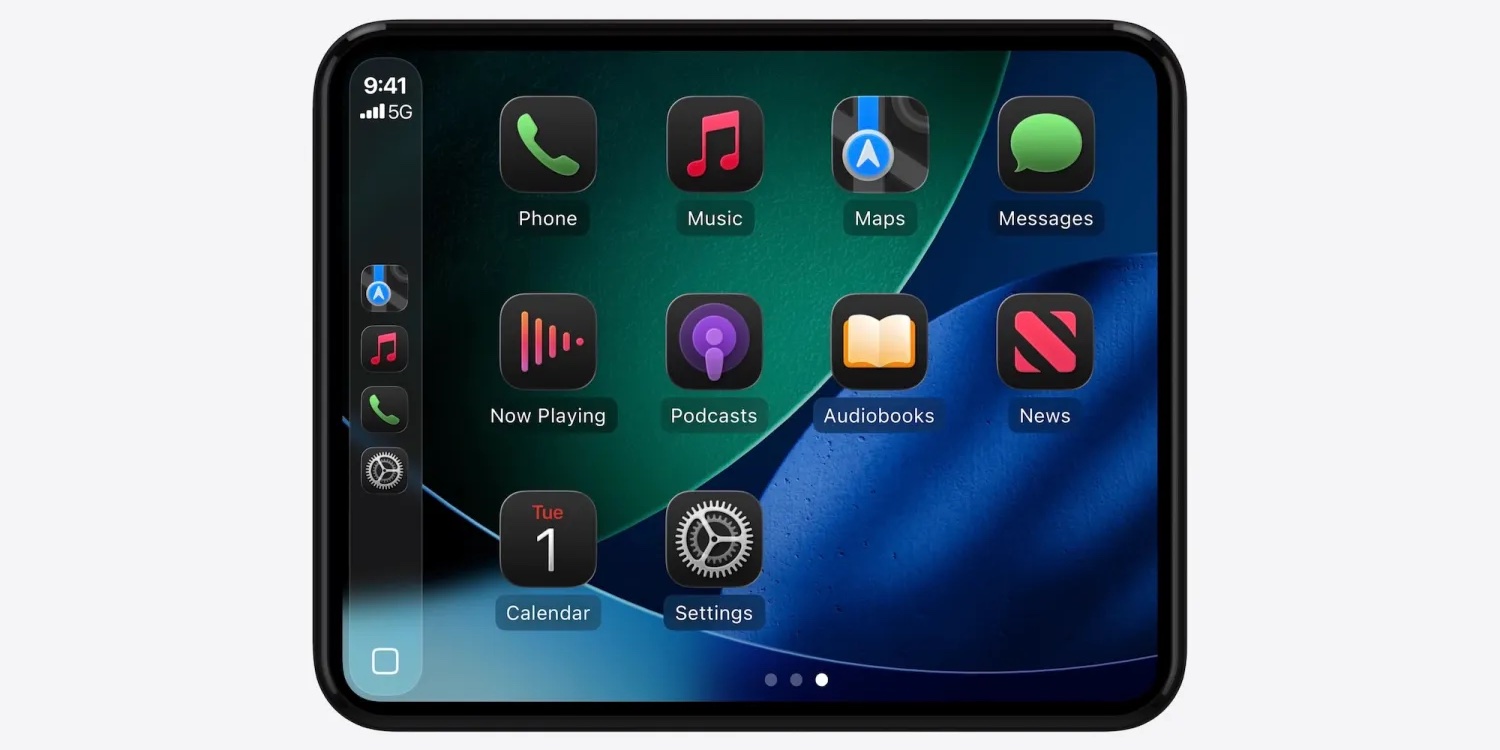
Smart Display Zoom is a unique new feature intended to better optimize your CarPlay setup based on the size and shape of your car’s screen.
In CarPlay’s Settings ⇾ Display app, you’ll find the new Smart Display Zoom toggle, which is off by default.
Note: Apple says the setting is not available on all cars. But it should be present on most.
If you want to get an idea of what Smart Display Zoom could look like, check out our full gallery here.
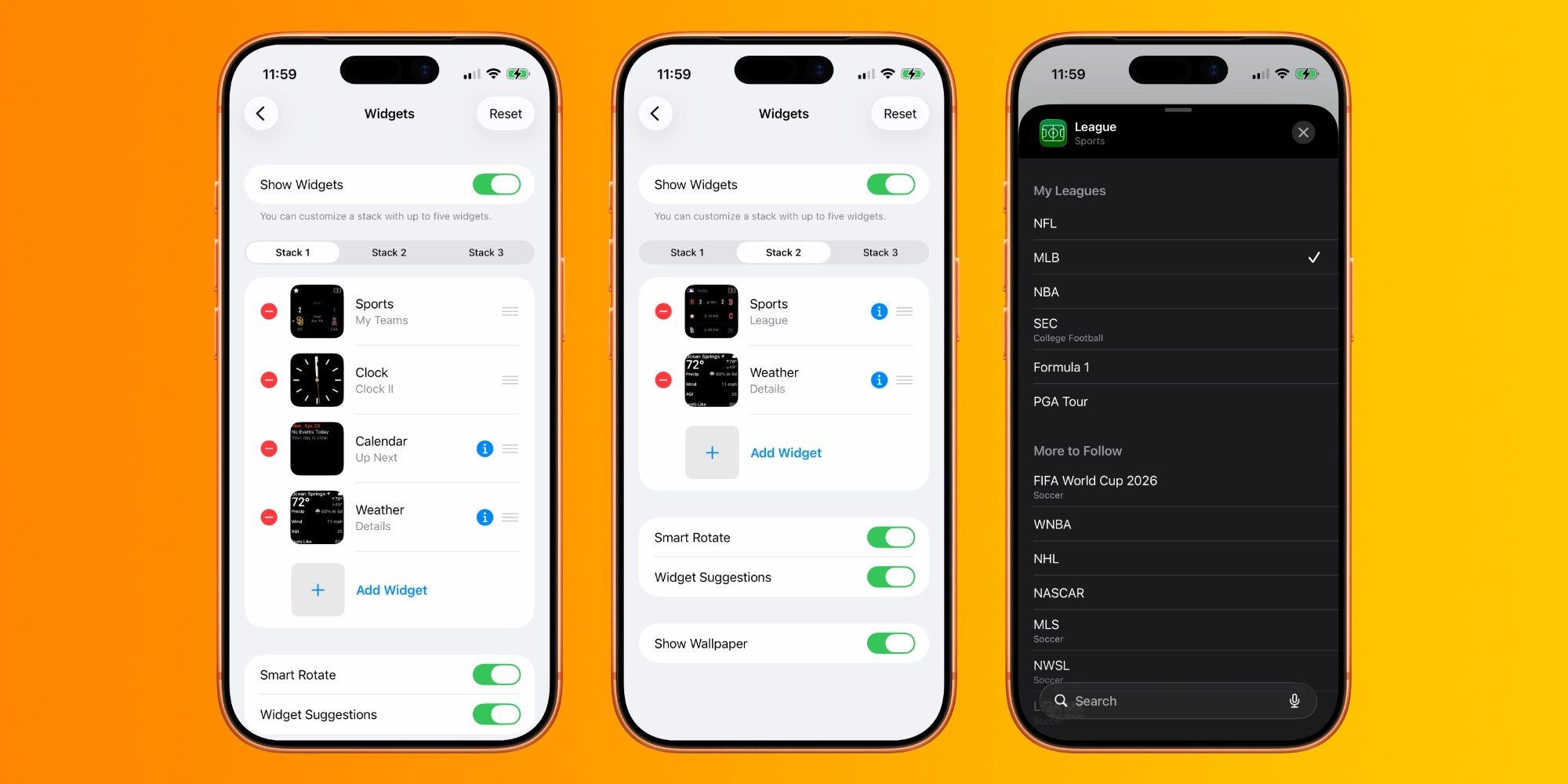
Widgets have been around on iPhone for years, but iOS 26 finally introduced them to CarPlay.
Widgets are on the left of your CarPlay home screen, and depending on the size of your screen, you’ll see 1 to 3 stacks of widgets at a time.
To customize the widgets for each stack, go to Settings on your iPhone, then General ⇾ CarPlay ⇾ Your Car ⇾ Widgets. Apple lets you add and remove widgets, with a maximum of five in each stack. You can also choose whether or not they use Smart Rotate.
#3: New Wallpapers
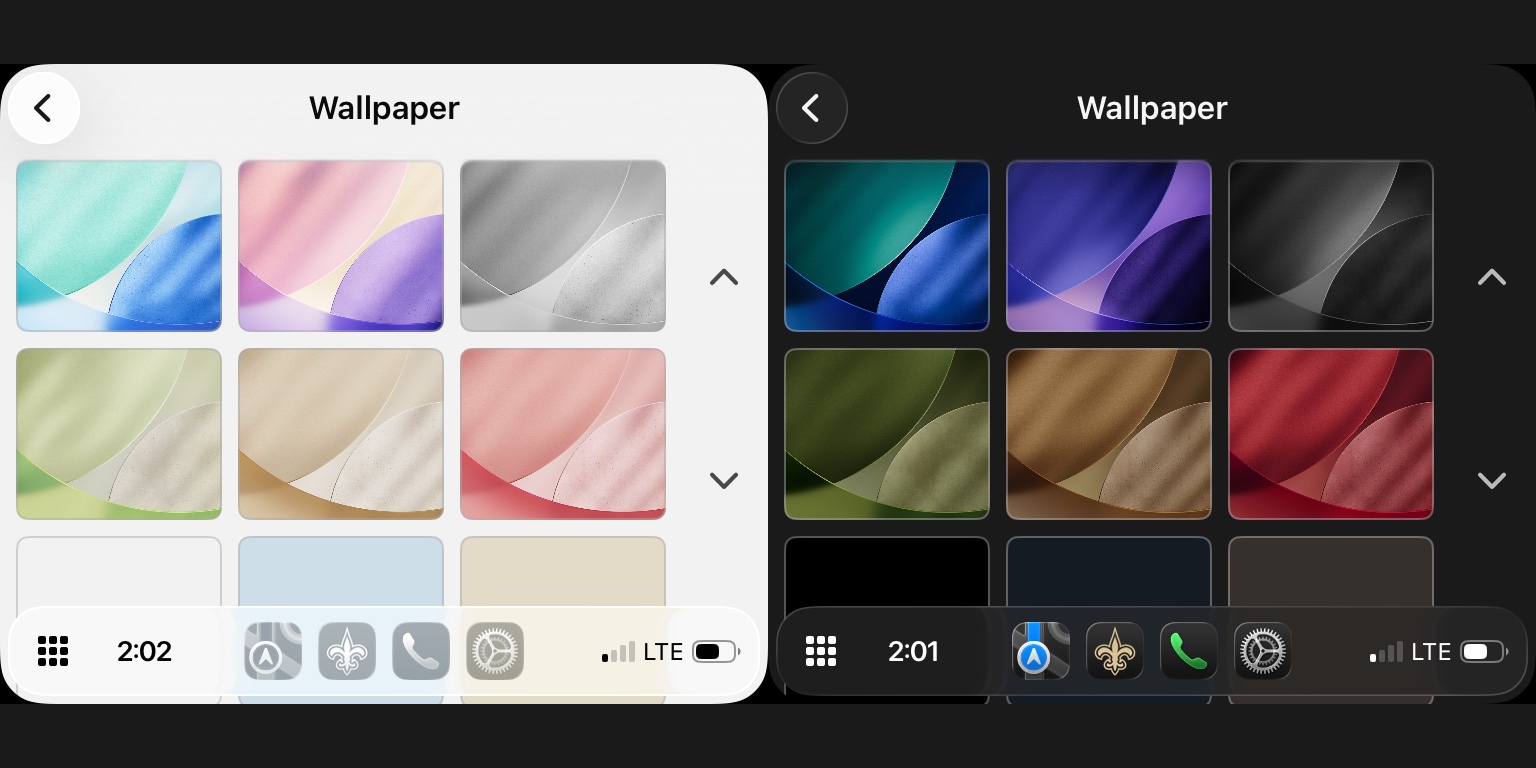
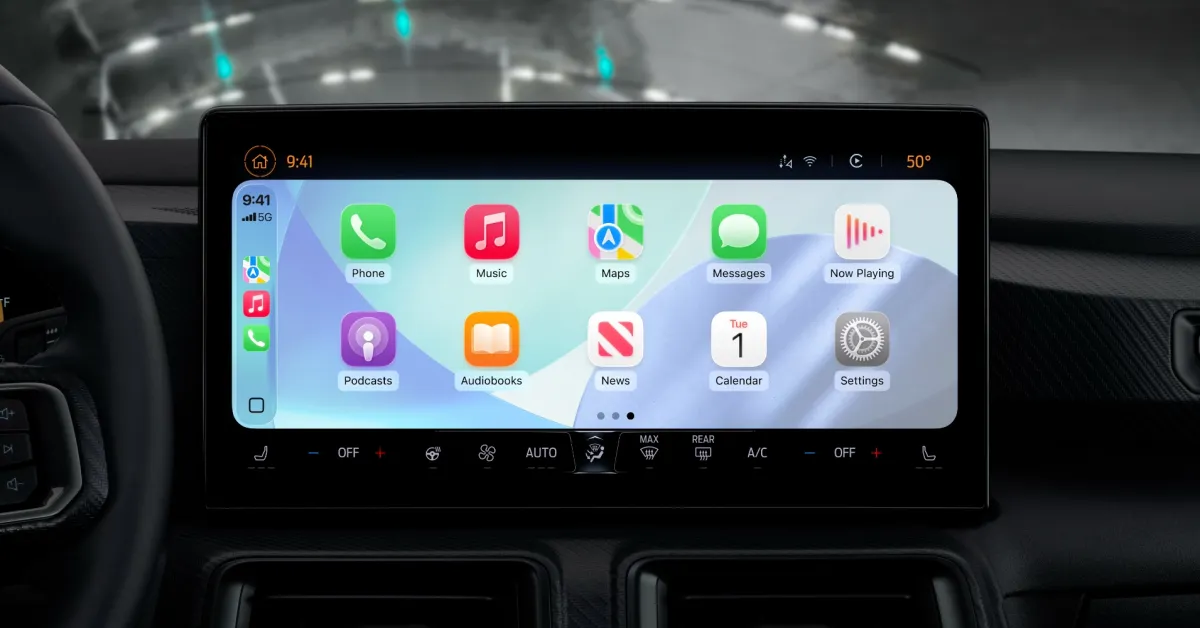
iOS 26 adds all-new wallpapers to CarPlay to give a new feel to the interface.
There are six different color options to choose from, all variations of the iPhone’s new default wallpaper.
Each wallpaper changes dynamically depending on whether you are using light mode or dark mode.
You can change your CarPlay wallpaper from the in-car Settings app ⇾ Wallpaper.
#4: Resize Text
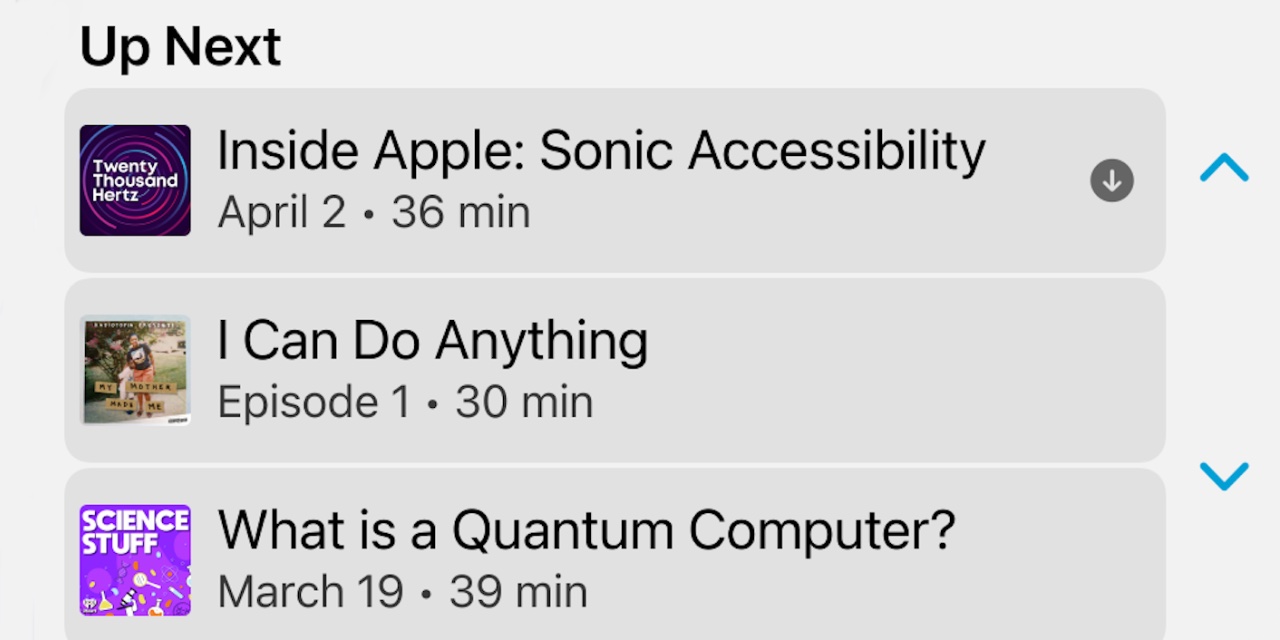
The iPhone has long offered accessibility settings to control text size on iOS. But for the first time, iOS 26 allows similar text resizing in CarPlay.
To resize text size system-wide in CarPlay, follow three simple steps:
- Open the Settings app
- Tap Accessibility, then Text Size
- Tap a text size and CarPlay will show a preview of the size under each number
5: Change App Icon Appearance
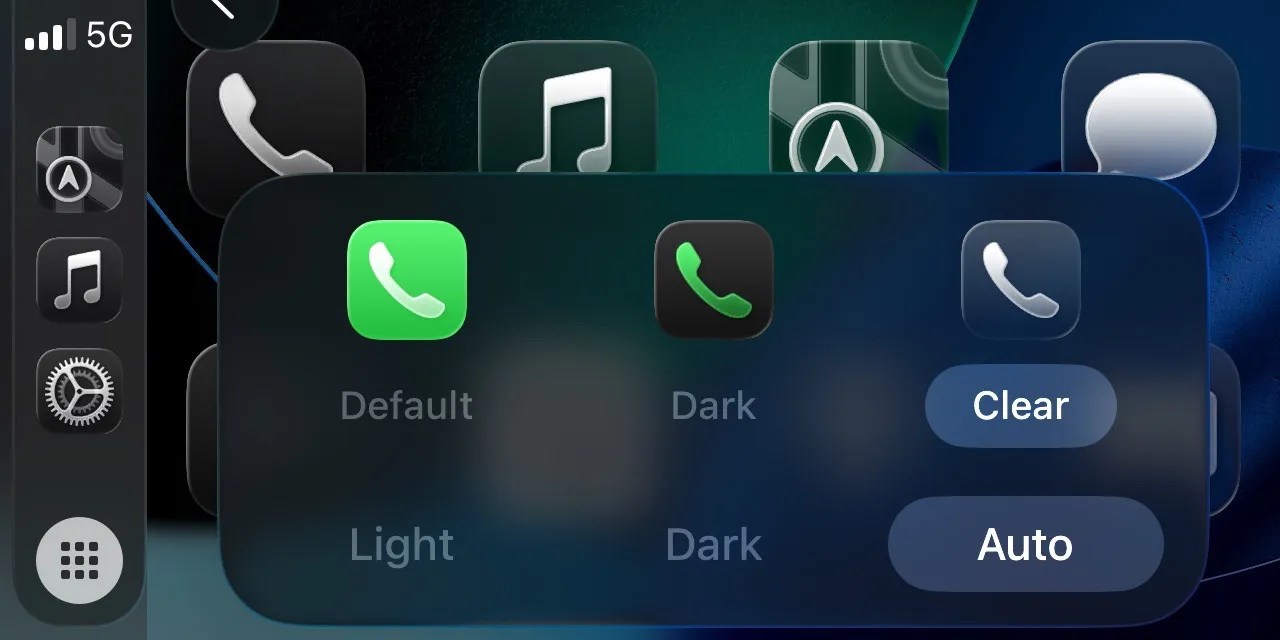
In the same way that you can customize the appearance of app icons on your iPhone’s home screen, CarPlay now also lets you change the appearance of the icons.
In CarPlay’s Settings app, you can choose whether app icons have a default, dark, or light appearance. These can be customized depending on whether you are in light mode or dark mode.
Clear appearance brings a more transparent liquid glass look to your CarPlay icons.
What are your favorite ways to customize your CarPlay setup? Let us know in the comments.
Best CarPlay accessories

FTC: We use automatic, revenue-generating affiliate links. More.