
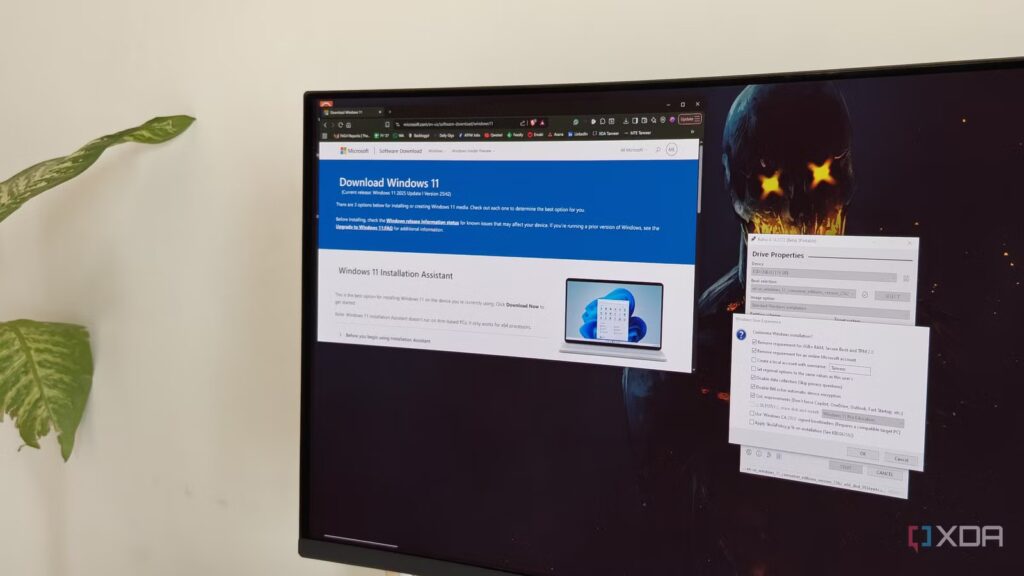
In 2026, unblocking Windows 11 before or after installation is not even a question for those who are done with the amount of “Microslop” that comes with it. Microsoft has been stuffing Windows 11 with unnecessary apps, AI integrations, and ads for years, and it’s not slowing down anytime soon. This makes free utilities like Rufus extremely useful for users who don’t want to endure the bloated installation of vanilla Windows 11. Although Rufus has remained the preferred tool for creating a bootable Windows ISO for years, its latest beta update now makes it a great Win11 unblocker as well. Now you can choose to remove Microsoft apps like Copilot, OneDrive, Outlook, etc. in just one click just before creating your Win11 bootable ISO. With this update, Rufus is now my preferred method for installing Windows 11 on a new PC.
Rufus can now remove all the Windows 11 bloat you don’t want
In the trash
I still use Windows 10 on my main PC, but its days are numbered. I’ve been beefing up my PC’s security with a third-party antivirus, but I know I need to upgrade to Windows 11 soon. The idea of using the vanilla version of Microsoft’s latest operating system appeals to me, since I’ve tried it in the past. The overwhelming amount of bloatware and restrictions provided by Windows 11 should be criminal. From ads on virtually every screen and proprietary apps that no one wants, to a mandatory online account and the TPM 2.0 requirement, it’s no wonder people are increasingly flocking to Windows 11 unlocking tools.
The latest update of Rufus i.e. Rufus 4.14 Beta comes with an option called “Quality of Life Improvements” which lets you avoid all the bloat that Microsoft likes to dump on your PC. This includes apps like Copilot, OneDrive, Outlook and Teams. It also disables Fast Startup, in case you don’t want the inconvenience it brings. With a simple checkbox, your Windows 11 experience can become much more enjoyable. Most people I know don’t want apps like Outlook, Teams, and OneDrive on their personal machines; these items should only reside on your work PC, if at all. Rufus now offers you a simple and effective way to completely ignore these unnecessary apps instead of deleting them later.
Your Windows installation is full of bloatware and most of it can be removed with a single PowerShell command.
One command to clear them all
Quickly run a Win11 installation
Another addition to the new version of Rufus is the ability to install Windows 11 “silently”. This means you no longer need to monitor every step of the Windows 11 installation process. This new unattended mode, if selected, creates a bootable Windows ISO on the first disk it detects. Using this method, you can install Windows 11 without any user intervention: the setup will automatically select the respective entries on each screen. As effective as this may seem, you need to be careful about the drives installed on your PC when you start this variation of the installation process. To be safe, only the disk you want to install Windows 11 on should be connected to the PC. The installation media will erase the disk it detects before installing Windows 11, so leaving important data on the target disk or any additional drives connected could be a mistake.

You don’t need a fresh install of Windows: you need better defaults
A full reset is rarely the solution
Rufus Unlocks and Creates Bootable Win11 ISO in One Utility
One tool to do it all
It’s not like Rufus needs any major changes to continue being a fan favorite for creating Windows and Linux bootable media. That said, the new unlocking options and unattended installation mode make it a complete Windows 11 setup utility. You no longer need to edit your Windows 11 ISO with Tiny11 Maker and then create a bootable ISO separately. Even unblocking scripts like Chris Titus Tech’s Windows Utility and Raphire’s Win11Debloat need to be run once you’ve finished installing Windows 11 Vanilla. Rufus now makes these methods redundant for the majority of Windows 11 users. You can unlock and create a bootable Windows 11 ISO with just one program – and install the operating system automatically too, if you want. This is a preview release, but we can expect the changes to arrive in the next stable release soon.
Rufus just became my favorite Win11 unlocker
I’ve always used Rufus to create bootable ISOs for Windows versions, but it has now also become my favorite unlocker. Having a single program to do everything is obviously a plus for any Windows 11 user. I don’t intend to use unattended installation mode, but it might be useful to other users, especially those with a single storage drive and looking for a fresh install. The latest version of Rufus continues to gain popularity as a fan-favorite utility.
