
No matter what AI tool you use or how long you’ve been using it, you’ve probably found yourself constantly explaining context to your AI assistant. This involves repeating your preferences over and over, rehashing what you’ve already covered, re-uploading materials, and telling him (for the hundredth time in a week) what you’re working on. This project, not this one. It’s the kind of friction that leads one to wonder: Isn’t AI supposed to be the smartest?
The people behind these AI tools have recognized this limitation and most of them have released some version of a Projects feature. The idea behind this feature is to give the AI a persistent space where it already knows what you’re working on, which files are relevant, and how you like things done. This way you can avoid all the repetitions and concentrate on the actual work. Both ChatGPT and Claude have their own vision for projects, and Google’s NotebookLM was built around this exact idea. I’ve been using all three for quite a while now, and while they’re all impressive depending on your use case, one of them is clearly ahead.
For source-based research, nothing beats NotebookLM
THE GOAT (if you stay within limits)
I’ve talked about NotebookLM a lot, and it’s for good reason. It’s truly a great tool, and the reason it has a special place in this space is because it was the first tool to realize that there are use cases where you don’t really want AI to know everything. Instead, you want him to know your business, and only your business. Since its launch until today, the goal of NotebookLM has been to give you a place where you can upload your own sources (PDFs, articles, YouTube videos, websites, etc.) and allow the tool to create a workspace based on them.
Initially, the tool was limited to questions and answers. You would ask the AI something about your sources, and it would extract the relevant information and cite exactly where it came from. It was pretty simple, but enough to stand out from everything else at the time. Then came the audio previews, which became the tool’s viral moment. Fast forward to today, the tool has numerous Studio Outputs (which are basically different ways to turn your sources into something useful). Currently, you will find audio overview, slide deck, video overview, mind map, reports, flashcards, quiz, infographics, and data tables.

Until NotebookLM, I never believed that AI could be a game changer for productivity.
It transformed my view of AI, for the better.
With the free tier, you can create up to 100 notebooks and add 50 sources per notebook. On the Plus plan, the number doubles. With the Pro plan, you can create 500 notebooks and add 300 sources to each notebook. On the most expensive Ultra tier, you can create 500 notebooks and add up to 600 sources to each notebook! That’s a huge amount of hardware you can cram into a single workspace, and NotebookLM handles it well. It keeps everything in one place, every response goes back to a specific source, and every output is based on what you actually downloaded.
For research that lives and dies on accuracy (think academic work, legal review, in-depth analysis of technical documentation), it’s really hard to beat. Studio outputs make it even better. However, depending on how you use the tool, NotebookLM’s greatest strength is also its greatest limitation. It only works with what you give it. It won’t search for new information, extract it from context on the web, or remember anything about you or your preferences in notebooks. Each laptop is its own isolated world. If your research requires synthesis beyond your uploaded sources, or you need an AI that can take initiative and go beyond what’s in front of it, you’ll quickly reach that ceiling.
So, for focused work, you won’t find a better tool than NotebookLM. But for everything else, you’ll need something more flexible. The Gemini x NotebookLM crossover is supposed to bridge that gap, but given that I’m not the biggest fan of Gemini Answers in general, it doesn’t really sit well with me. So I won’t recommend it here.
ChatGPT Projects ticks the boxes but something seems…off
Execution is questionable
While NotebookLM is designed around the idea of creating confined workspaces, ChatGPT and Claude (among other AI tools) have dedicated projects features. OpenAI describes projects as “intelligent workspaces that bring together everything about a long-running effort in one place.” The feature is available to all free and paid users worldwide and syncs across all your devices. And on the surface, ChatGPT Projects does a lot of good.
You can upload files, bring related discussions together under one roof, and unlike NotebookLM, ChatGPT can still search the web and leverage its broader knowledge while remaining grounded in the context of your project. This is a significant advantage. You are not locked into your own sources. The limits are generous too, especially compared to Claude (who has absolutely brutal limits). However, once you start using it, you’ll notice that some things seem…weird.

I use ChatGPT, Claude, Perplexity and Gemini daily – here’s the only one worth paying for
One is above the others.
To begin with, when you create a new project, it is not possible to add custom instructions in advance. You’d expect this to be part of the setup flow, but instead you need to first create the project, then click the three-dot menu, open the project settings, and add your instructions there. Then there is the memory situation. ChatGPT gives you two options when creating a project: Default, where the project can access external chat memories and vice versa, and Project Only, where the project can only access its own memories. It seems simple enough.
Interestingly, despite setting a project to Project Only, I asked him about a conversation I had in a completely separate chat (not part of any project), and he still brought up that conversation. If Project Only doesn’t actually mean Project Only, what’s the point of the setting? And even putting that aside, once your files are in a project, there’s not much you can do with them beyond asking questions. There are no studio-style outputs like NotebookLM, nor live previews or generated documents like Claude (more on that below). Retrieval works well enough, but the functionality doesn’t really go beyond questions and answers.
Claude projects seem to be the best of both worlds
Everything, everywhere, all at once
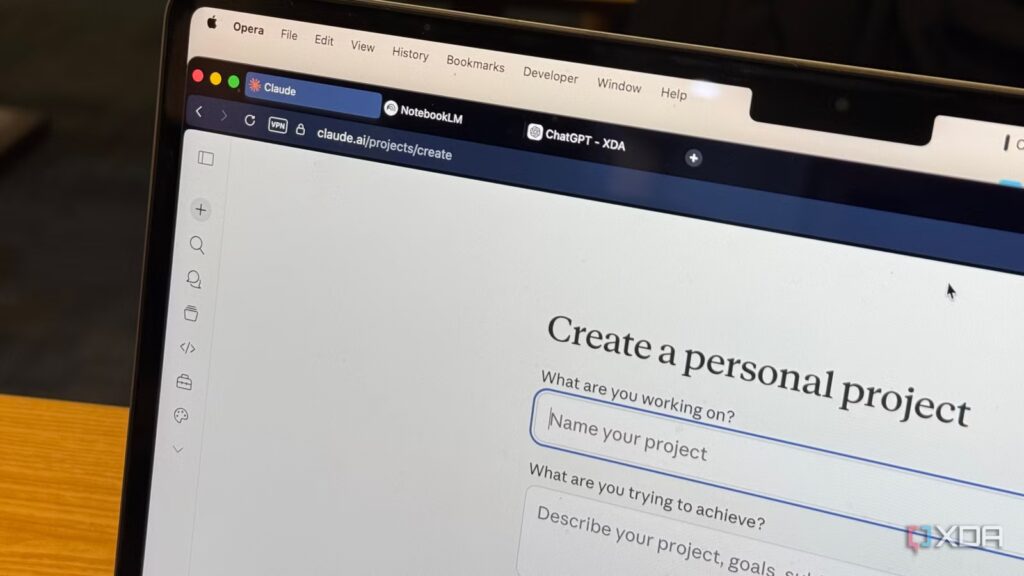
Claude is a tool I rely on heavily, and Projects has quickly become a major reason why. It gives you the source-based workspace that makes NotebookLM so powerful, the web access and broader knowledge that ChatGPT projects offer, and goes even further. For starters, unlike ChatGPT, the setup makes sense. When you create a project in Claude, you can add custom instructions from the start. You don’t need to dig into the settings menu after the fact (although you absolutely can). You tell him how you want him to behave, what tone to use, what to keep in mind, and every conversation within this project follows these instructions from the start.
Most importantly, Claude keeps your projects properly contained. When you search for previous conversations within a project, only discussions belonging to that project are displayed, not all conversations you’ve already had. I also found Claude’s recovery within the projects really solid. Based on the support documentation, the tool uses a hybrid approach. When your project files are small enough, everything is loaded directly into the context, meaning your entire project is in memory at once. As your project grows, it automatically switches to fetch-based search. Anthropic claims this can increase the effective capacity of your project by 10 times.

The best part of using Claude Projects, however, is everything the tool has to offer. First, the interactive visuals that Claude launched earlier this year. When a visual would explain something better than a text, Claude builds one at the heart of the conversation! Instead of opening in a separate panel (like Claude Artifacts), these appear inline. You can click, toggle inputs and adjust sliders. I find them better than NotebookLM’s Studio outputs like Mind Maps!
Then there’s Artifacts: Claude’s side panel where he renders complete documents, working code, interactive applications, and much more. Ask him to build you a prototype, chart, or mini-tool, and it will appear right next to your cat! You can edit it as much as you want, or just ask Claude to do it, and he will update it in real time. It’s a complete workspace where things actually get done. If you want to go even further, the projects now live within Claude Cowork. Cowork gives your projects direct access to local files on your machine, scheduled recurring tasks, and the ability to trigger everything from your phone via Dispatch.
Claude > NotebookLM > ChatGPT
I’ve always strongly advocated using NotebookLM for research on anything and everything, and it’s still my top recommendation when wanting to work with your sources. But when your work requires more than that, it’s Claude who will guide you.
